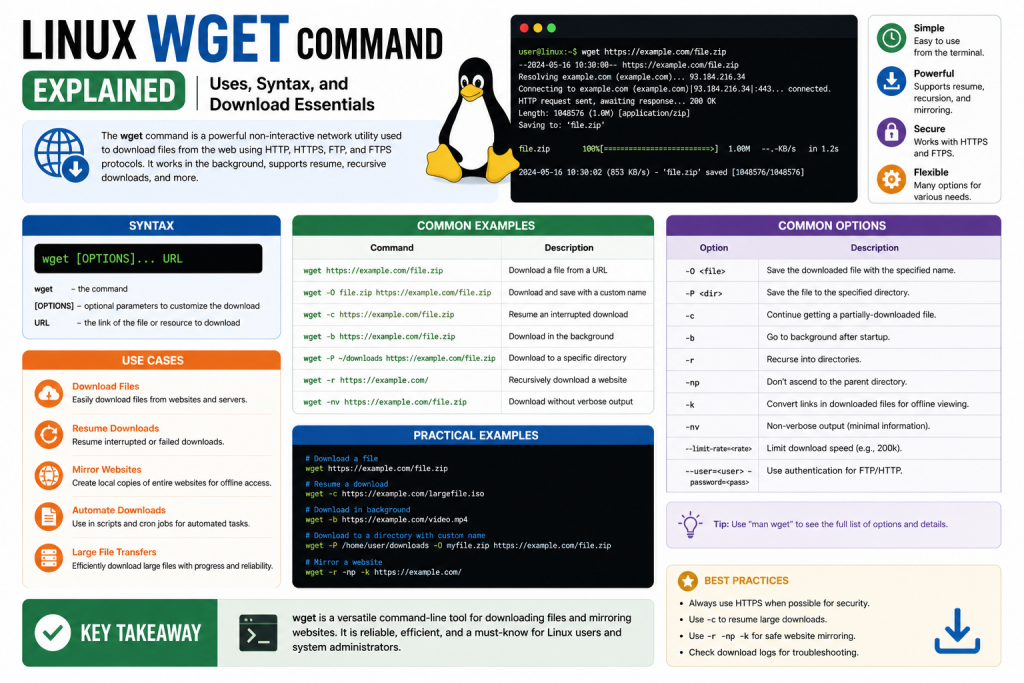
Wget is a command-line utility widely used in Linux systems for downloading files and retrieving content from the internet. Its name originates from “World Wide Web Get,” which accurately describes its core purpose of fetching resources from web servers. Unlike graphical tools such as web browsers, Wget operates entirely within the command-line interface, making it especially valuable in environments where a graphical user interface is unavailable or unnecessary.
This tool is open-source and maintained as part of the GNU Project, which means it is freely available and continuously improved by a global community of developers. Wget supports commonly used internet protocols such as HTTP, HTTPS, and FTP, allowing users to download a wide variety of content ranging from simple text files to large software packages and entire website structures.
One of the defining features of Wget is its non-interactive design. Once a command is issued, Wget can carry out its task without requiring further user input. This makes it highly suitable for automation and scripting, where tasks can run in the background without supervision. For users working with servers or remote systems, this capability is not just convenient but often essential.
The Role of Wget in Linux Systems
Linux environments frequently rely on command-line tools for system administration, development, and maintenance. Wget plays a crucial role in this ecosystem by providing a reliable method for downloading external resources directly to a system.
In many cases, Linux servers do not have graphical environments installed. This is particularly common in production systems, where efficiency and resource management are priorities. In such scenarios, Wget becomes the primary method for retrieving files from the internet. Whether it is downloading software updates, configuration files, or data sets, Wget provides a straightforward and dependable solution.
Another important use case involves remote system management. Administrators often connect to servers using secure shell connections, which provide command-line access. From there, Wget allows them to download necessary files without needing to transfer them from a local machine. This reduces complexity and streamlines workflows.
Wget is also widely used in development environments. Developers may need to download dependencies, test files, or APIs during the development process. Using Wget simplifies these tasks and integrates easily into scripts and automation pipelines.
Why Wget is Widely Used
There are many reasons why Wget has remained a popular tool for decades. Its reliability, simplicity, and versatility make it suitable for a wide range of tasks.
One of its strongest advantages is its ability to handle unstable network conditions. If a download is interrupted due to a lost connection, Wget can resume the download from where it left off. This is particularly useful when dealing with large files or unreliable internet connections.
Another key benefit is its efficiency. Wget is designed to perform downloads quickly and consistently, often outperforming graphical tools when handling large or multiple files. Because it operates through the command line, it uses fewer system resources, making it ideal for servers and low-power systems.
Wget also excels in automation. Its non-interactive nature allows it to be integrated into scripts and scheduled tasks. Users can set up automated processes to download files at specific times or intervals, reducing the need for manual intervention.
Additionally, Wget supports recursive downloading, which enables users to download entire websites or directory structures. This feature is useful for creating offline copies of websites, backing up content, or conducting research.
Understanding Non-Interactive Downloads
A key concept behind Wget is its non-interactive operation. This means that once a command is executed, the tool continues running until the task is complete, without requiring additional input from the user.
This behavior is particularly useful in automated environments. For example, a system administrator might schedule a script to download backup files every night. With Wget, this process can run automatically without requiring anyone to monitor it.
Non-interactive operation also makes Wget suitable for batch processing. Users can create scripts that include multiple download commands, allowing them to retrieve large numbers of files in a single operation.
Because Wget does not rely on a graphical interface, it can run in the background or as part of a larger workflow. This flexibility is one of the reasons it is so widely used in professional environments.
Protocol Support and Flexibility
Wget supports several internet protocols, which makes it a versatile tool for downloading content. The most commonly used protocols are HTTP and HTTPS, which are used for accessing web pages and files on the internet. HTTPS adds a layer of security by encrypting data during transmission, ensuring that sensitive information is protected.
In addition to HTTP and HTTPS, Wget also supports FTP, a protocol commonly used for transferring files between systems. This allows users to download files from FTP servers, including those that require authentication.
The ability to work with multiple protocols means that Wget can be used in a variety of scenarios. Whether downloading a file from a website, retrieving data from a secure server, or accessing files on an FTP server, Wget provides a consistent and reliable interface.
Comparing Wget with Graphical Tools
While graphical web browsers are commonly used for downloading files, Wget offers several advantages that make it a better choice in certain situations.
One major difference is automation. Browsers require user interaction to initiate and manage downloads, whereas Wget can perform these tasks automatically. This makes it more efficient for repetitive or large-scale operations.
Another advantage is resource usage. Wget operates through the command line and does not require a graphical interface, which means it uses fewer system resources. This is particularly important in server environments where performance and efficiency are critical.
Wget also provides greater control over downloads. Users can specify options such as download speed, file naming, and directory structure. This level of customization is not always available in graphical tools.
However, graphical browsers are more user-friendly for casual users who prefer a visual interface. The choice between Wget and a browser depends on the specific needs of the user and the task at hand.
Installing Wget on Linux
Although Wget is included by default in many Linux distributions, there are cases where it may need to be installed manually. Fortunately, the installation process is straightforward and can be completed using the system’s package manager.
Different Linux distributions use different package managers, but the general process involves updating the package list and installing the Wget package. Once installed, the tool is immediately available for use.
After installation, users can verify that Wget is working correctly by checking its version. This confirms that the tool has been installed successfully and is ready to use.
Installing Wget is typically a one-time process, after which it becomes a permanent part of the system’s toolkit.
Verifying Wget Installation
Once Wget is installed, it is important to confirm that it is functioning correctly. This can be done by running a simple command that displays the installed version of the tool.
The output provides information about the version number, build details, and supported features. This helps users ensure that they have the correct version installed and that it includes the necessary capabilities.
Verifying the installation is a quick but important step, especially in environments where reliability is critical. It ensures that the tool is ready for use and can perform as expected.
Basic Command Structure
Before diving into advanced features, it is important to understand the basic structure of a Wget command. At its simplest, a Wget command consists of the tool name followed by a URL.
When the command is executed, Wget connects to the specified server, retrieves the requested file, and saves it to the current directory. The process is straightforward and requires minimal input from the user.
Additional options can be added to the command to customize its behavior. These options allow users to control various aspects of the download process, such as file naming, directory structure, and connection settings.
Understanding the basic command structure provides a foundation for learning more advanced features and techniques.
Advantages for System Administrators
System administrators rely heavily on tools like Wget to manage and maintain Linux systems. Its ability to download files directly from the command line makes it an essential part of their toolkit.
For example, administrators often need to download software updates or patches. Using Wget, they can retrieve these files quickly and efficiently, even on systems without graphical interfaces.
Wget is also useful for managing backups. Administrators can automate the process of downloading backup files from remote servers, ensuring that data is regularly updated and protected.
In addition, Wget can be used for monitoring and testing purposes. By downloading files from specific locations, administrators can verify that servers and network connections are functioning correctly.
Advantages for Developers
Developers also benefit from using Wget in their workflows. It provides a simple and efficient way to download dependencies, test data, and other resources required for development.
Because Wget can be integrated into scripts, it fits seamlessly into automated build and deployment processes. This helps developers maintain consistency and efficiency in their workflows.
Wget can also be used for testing APIs and web services. By retrieving data from specific endpoints, developers can verify that their applications are functioning correctly.
Its flexibility and ease of use make it a valuable tool for developers working in a variety of environments.
Security Considerations
When using Wget, it is important to consider security. Downloading files from untrusted sources can pose risks, so users should always verify the authenticity of URLs before initiating downloads.
Using HTTPS connections helps ensure that data is transmitted securely. Wget supports HTTPS and can handle encrypted connections, providing an additional layer of protection.
Users should also be cautious when providing authentication credentials. Storing sensitive information securely and avoiding exposure in scripts or command history is essential.
By following best practices, users can minimize risks and ensure safe usage of Wget.
Preparing for Advanced Usage
Understanding the basics of Wget is the first step toward mastering its full capabilities. Once users are comfortable with simple downloads and command structures, they can begin exploring more advanced features.
These include options for controlling bandwidth, resuming downloads, and recursively downloading entire websites. Each of these features adds to the versatility of Wget and expands its range of applications.
Learning advanced usage requires practice and experimentation. By gradually exploring different options and scenarios, users can develop a deeper understanding of the tool.
Getting Started with Basic Downloads
Once Wget is installed and verified, the next step is learning how to use it for everyday downloading tasks. The simplest and most common use case is downloading a file from the internet using a direct URL. This process requires minimal effort and demonstrates the core functionality of the tool.
When a user provides a URL, Wget connects to the remote server, retrieves the file, and saves it to the current working directory. The current directory is the location in which the command is executed. If no additional options are specified, the downloaded file retains its original name as it appears on the server.
This simplicity is one of the reasons Wget is so widely used. Even users who are new to the command line can quickly learn how to perform basic downloads without needing extensive technical knowledge. Over time, as users become more comfortable, they can explore additional options to customize their downloads.
Downloading Files Over Secure Connections
In modern computing environments, most downloads occur over secure connections using HTTPS. This protocol ensures that data is encrypted during transmission, protecting it from interception or tampering.
Wget handles HTTPS downloads seamlessly. When a user specifies an HTTPS URL, the tool establishes a secure connection with the server and retrieves the file just as it would with a standard HTTP connection. This process is automatic and does not require additional configuration in most cases.
Secure downloads are especially important when retrieving sensitive files such as software packages, configuration files, or private data. By using HTTPS, users can ensure that their downloads are safe and reliable.
Downloading Files from FTP Servers
In addition to web-based protocols, Wget supports FTP, which is commonly used for transferring files between systems. FTP servers are often used to host large files, backups, or software distributions.
When downloading from an FTP server, users can provide the server address along with the file path. If the server requires authentication, a username and password can be included in the command. This allows secure access to restricted files.
FTP downloads are particularly useful in enterprise environments where files are stored on dedicated servers. Wget provides a convenient way to retrieve these files without needing specialized FTP client software.
Saving Files to Specific Locations
By default, Wget saves downloaded files in the current directory. However, users often need more control over where files are stored. Wget allows users to specify a custom directory and filename for each download.
This feature is especially helpful when organizing files or managing multiple downloads. Instead of moving files manually after downloading, users can direct them to the desired location from the start.
For example, a user might choose to save all downloaded files in a dedicated downloads directory. This keeps the system organized and makes it easier to locate files later.
Custom naming is also useful when downloading files with generic or repetitive names. By assigning unique filenames, users can avoid conflicts and maintain clarity.
Managing Multiple Downloads Efficiently
Wget is capable of handling multiple downloads in a streamlined manner. Instead of downloading files one at a time, users can provide a list of URLs and let Wget process them sequentially.
This approach is particularly useful when dealing with large numbers of files. For example, a developer might need to download multiple datasets or resources for a project. By using a list of URLs, the entire process can be completed with a single command.
This capability not only saves time but also reduces the likelihood of errors. Users do not need to repeatedly enter commands, which minimizes the risk of mistakes.
In addition, Wget can be combined with scripts to further enhance efficiency. This allows users to automate complex download tasks and integrate them into larger workflows.
Resuming Interrupted Downloads
One of the most valuable features of Wget is its ability to resume interrupted downloads. Network interruptions can occur for various reasons, including connectivity issues, server timeouts, or system shutdowns.
When a download is interrupted, Wget can continue from where it left off instead of starting over. This is achieved by checking the existing file and requesting only the missing portion from the server.
This feature is particularly important when downloading large files, such as software images or data archives. Restarting a large download from the beginning can be time-consuming and inefficient, especially on slower connections.
By resuming downloads, Wget saves both time and bandwidth. It ensures that users can complete their downloads even in less-than-ideal network conditions.
Controlling Download Speed and Bandwidth Usage
In shared network environments, it is often necessary to limit the bandwidth used by downloads. Without control, a large download could consume most of the available bandwidth, affecting other users or applications.
Wget provides options to limit the download speed. Users can specify a maximum rate, ensuring that the download proceeds at a controlled pace. This helps maintain network stability and prevents congestion.
This feature is particularly useful in office environments, educational institutions, or any setting where multiple users share the same network connection. By managing bandwidth usage, Wget allows users to perform downloads without disrupting others.
Running Downloads in the Background
Another advantage of Wget is its ability to run downloads in the background. This allows users to continue working on other tasks while downloads are in progress.
Background execution is especially useful for long-running downloads. Instead of keeping a terminal window open and monitoring the process, users can start the download and move on to other activities.
Wget can also log its output to a file, providing a record of the download process. This is helpful for troubleshooting or reviewing completed tasks.
Running downloads in the background enhances productivity and makes Wget a practical tool for multitasking.
Automating Downloads with Scripts
Automation is one of the key strengths of Wget. Because it operates through the command line, it can be easily integrated into scripts. This allows users to automate repetitive tasks and improve efficiency.
For example, a script can be created to download files from a specific source on a regular basis. This is useful for tasks such as retrieving daily reports, updating datasets, or syncing files between systems.
Scripts can include multiple Wget commands, enabling complex workflows to be executed automatically. This reduces the need for manual intervention and ensures consistency in operations.
Automation is particularly valuable in professional environments where time and accuracy are critical. By leveraging Wget in scripts, users can streamline their processes and focus on more important tasks.
Scheduling Downloads with Cron Jobs
In Linux systems, scheduled tasks are managed using cron jobs. Wget can be combined with cron to perform downloads at specific times or intervals.
For example, a user might schedule a download to occur every night at midnight. This ensures that files are updated regularly without requiring manual input.
Cron jobs are defined using a simple syntax that specifies the timing and command to be executed. Once configured, the system automatically runs the task according to the schedule.
Combining Wget with cron creates a powerful system for managing automated downloads. It allows users to maintain up-to-date files and data without constant supervision.
Handling File Overwrites and Updates
When downloading files, it is important to consider how existing files are handled. By default, Wget may overwrite files with the same name. However, users can control this behavior using various options.
For example, users can instruct Wget to skip downloading files that already exist. This is useful when working with large datasets or repeated downloads.
Alternatively, Wget can be configured to download updated versions of files only if they have changed. This ensures that users always have the latest version without unnecessary downloads.
These options provide flexibility and help users manage their files more effectively.
Working with Directory Structures
Wget can create directory structures when downloading files. This is particularly useful when retrieving files from servers that organize content into folders.
By preserving the directory structure, Wget ensures that files are organized in a logical manner. This makes it easier to navigate and manage downloaded content.
Users can also customize how directories are created, allowing them to tailor the structure to their needs. This level of control is especially valuable when dealing with large or complex datasets.
Downloading Large Files Efficiently
Large files can present unique challenges, including long download times and potential interruptions. Wget addresses these challenges with features designed to improve efficiency and reliability.
In addition to resuming downloads, Wget can maintain stable connections and handle retries automatically. If a connection fails, the tool can attempt to reconnect and continue the download.
This ensures that large files can be downloaded successfully even in less reliable network conditions. It also reduces the need for manual intervention, making the process more convenient.
Using Wget for Data Collection
Wget is not limited to downloading individual files. It can also be used for data collection and research purposes. By retrieving content from multiple sources, users can gather information quickly and efficiently.
For example, a researcher might use Wget to download datasets from various websites. By automating the process, they can save time and focus on analyzing the data.
This capability makes Wget a valuable tool in fields such as data science, research, and analytics.
Improving Workflow Efficiency
Incorporating Wget into daily workflows can significantly improve efficiency. By automating downloads and managing files effectively, users can reduce the time spent on repetitive tasks.
Wget’s flexibility allows it to adapt to different use cases, from simple file downloads to complex automation scenarios. This makes it a versatile tool for a wide range of users.
As users become more familiar with Wget, they can explore additional features and techniques to further enhance their workflows.
Preparing for Advanced Features
The features covered in this section provide a strong foundation for using Wget in practical scenarios. However, the tool offers even more advanced capabilities that can further expand its usefulness.
These include recursive downloading, website mirroring, and advanced authentication methods. Understanding these features requires a solid grasp of the basics, which have been covered in this section.
By building on this knowledge, users can continue to develop their skills and take full advantage of what Wget has to offer.
Introduction to Advanced Wget Capabilities
After understanding the basics and practical usage of Wget, it is important to explore its more advanced features. These capabilities are what truly set Wget apart from simple downloading tools. They allow users to perform complex operations, automate large-scale tasks, and customize behavior to suit specific needs.
Advanced usage of Wget is particularly valuable in professional environments where efficiency, reliability, and flexibility are critical. System administrators, developers, and power users often rely on these features to manage data, maintain systems, and streamline workflows.
This section focuses on the deeper aspects of Wget, including recursive downloading, authentication, customization, and troubleshooting. By mastering these features, users can unlock the full potential of this powerful tool.
Recursive Downloading Explained
One of the most powerful features of Wget is its ability to perform recursive downloads. This means that instead of downloading a single file, Wget can follow links within a webpage and download all related content.
Recursive downloading is commonly used to create offline copies of websites. Wget starts with a specified URL and then follows links within that page, downloading each referenced file. This includes HTML pages, images, stylesheets, and other resources needed to recreate the website locally.
Users can control how deep the recursion goes by specifying a depth level. For example, a depth of one downloads only the initial page and its direct links, while a higher depth allows Wget to follow links further into the site.
This feature is extremely useful for archiving websites, conducting research, or creating backups. It allows users to access content even without an internet connection.
Website Mirroring and Offline Browsing
Building on recursive downloading, Wget can be used to mirror entire websites. Website mirroring involves creating a complete local copy of a website, including its structure and content.
When mirroring a site, Wget downloads all necessary files and adjusts links so they work locally. This ensures that the mirrored site can be browsed offline as if it were hosted on a live server.
Website mirroring is valuable for several reasons. It allows users to preserve content that may change or be removed over time. It also enables offline access, which can be useful in environments with limited or unreliable internet connectivity.
Additionally, mirrored websites can be used for testing and development purposes. Developers can experiment with site changes locally without affecting the live version.
Fine-Tuning Recursive Downloads
While recursive downloading is powerful, it must be used carefully. Without proper configuration, Wget may download more content than intended, leading to excessive data usage and storage requirements.
To address this, Wget provides options for fine-tuning recursion. Users can limit downloads to specific domains, preventing the tool from following external links. This ensures that only relevant content is retrieved.
Users can also exclude certain file types or directories. For example, they might choose to skip large media files or unnecessary resources. This helps reduce download size and improves efficiency.
Another useful option is controlling the number of files downloaded from a single directory. This prevents Wget from retrieving an overwhelming amount of data from a single source.
By carefully configuring these options, users can achieve precise and efficient recursive downloads.
Authentication and Secure Access
In many cases, the content users need to download is protected and requires authentication. Wget supports various methods for accessing such resources securely.
Users can provide a username and password directly in the command. This allows Wget to authenticate with the server and retrieve the requested files. While this method is straightforward, it may not be the most secure, especially if commands are stored in history logs.
A more secure approach involves using configuration files to store credentials. These files can be protected with appropriate permissions, reducing the risk of unauthorized access.
Wget also supports cookie-based authentication. This is useful for accessing websites that require login sessions. By providing a cookie file, users can maintain an authenticated session and download protected content.
These features make Wget suitable for working with private servers, secure websites, and restricted data sources.
Customizing Wget Behavior
Wget offers a wide range of options for customization, allowing users to tailor its behavior to their specific needs. This flexibility is one of the reasons why it is so widely used in advanced scenarios.
Users can control how files are named and where they are saved. For example, they can preserve the original directory structure of a website or flatten it into a single directory.
Wget also allows users to set retry limits and timeouts. This ensures that downloads are handled efficiently, even in unreliable network conditions.
Logging is another important feature. Users can direct Wget to save detailed logs of its operations. These logs can be used for monitoring progress, diagnosing issues, or keeping records of completed tasks.
By combining these customization options, users can create highly efficient and tailored workflows.
Handling Large-Scale Downloads
In enterprise and research environments, users often need to download large volumes of data. Wget is well-suited for handling such tasks due to its robustness and flexibility.
For large-scale downloads, it is important to manage resources effectively. Wget allows users to control bandwidth usage, limit the number of connections, and schedule downloads to run during off-peak hours.
Users can also break down large tasks into smaller batches, making them easier to manage. This approach reduces the risk of errors and improves overall efficiency.
Wget’s ability to resume downloads is particularly valuable in large-scale operations. It ensures that progress is not lost in case of interruptions.
Error Handling and Retry Mechanisms
Network errors and interruptions are common when downloading files. Wget includes built-in mechanisms to handle these issues gracefully.
When a download fails, Wget can automatically retry the operation. Users can specify the number of retries and the delay between attempts. This increases the likelihood of successful downloads, especially in unstable network conditions.
Wget also provides detailed error messages, which help users identify and resolve issues. These messages can indicate problems such as connection failures, permission errors, or invalid URLs.
By understanding and utilizing these features, users can improve the reliability of their downloads.
Troubleshooting Common Problems
Despite its reliability, users may encounter issues when using Wget. Understanding common problems and their solutions is essential for effective troubleshooting.
Certificate errors are one of the most common issues when downloading files over secure connections. These errors occur when the server’s SSL certificate cannot be verified. In some cases, users can bypass this check, but it should be done with caution.
Authentication problems often result from incorrect credentials. Ensuring that usernames and passwords are accurate usually resolves these issues.
Connection problems can be caused by network issues, firewall restrictions, or server downtime. Checking network settings and connectivity can help identify the root cause.
Permission errors occur when users do not have the necessary rights to save files in a specified location. Choosing an appropriate directory or adjusting permissions can resolve this problem.
Recursive download issues may arise from complex website structures. Adjusting recursion depth and domain restrictions can help address these challenges.
Best Practices for Advanced Usage
To make the most of Wget’s advanced features, it is important to follow best practices. These guidelines help ensure efficient, secure, and reliable operation.
Always verify the source of files before downloading. This reduces the risk of downloading malicious or corrupted content.
Use secure connections whenever possible. HTTPS provides encryption and helps protect data during transmission.
Limit recursion and downloads to what is necessary. This prevents excessive data usage and keeps storage requirements manageable.
Store sensitive information, such as credentials, securely. Avoid exposing them in scripts or command history.
Test commands and scripts before using them in production environments. This helps identify potential issues and ensures smooth operation.
Integrating Wget into Workflows
Wget can be integrated into a wide range of workflows, from simple scripts to complex automation systems. Its command-line interface makes it compatible with other tools and technologies.
For example, Wget can be used in combination with shell scripts to automate data retrieval. It can also be integrated into continuous integration pipelines, where it retrieves dependencies or test data.
In data analysis workflows, Wget can be used to collect datasets from various sources. This simplifies the process of gathering and updating data.
By integrating Wget into workflows, users can improve efficiency and reduce manual effort.
Performance Optimization Techniques
Optimizing performance is important when working with large or frequent downloads. Wget provides several options to improve speed and efficiency.
Users can adjust connection settings to improve performance. For example, increasing the number of retries or adjusting timeouts can help maintain stable downloads.
Limiting bandwidth during peak hours and scheduling downloads during off-peak times can also improve performance. This ensures that downloads do not interfere with other network activities.
Using local mirrors or faster servers can significantly reduce download times. Choosing reliable sources is an important aspect of performance optimization.
Security and Ethical Considerations
When using advanced features such as recursive downloading and website mirroring, it is important to consider ethical and legal implications.
Users should respect website policies and avoid downloading content without permission. Excessive requests can place a burden on servers and may violate terms of service.
It is also important to protect sensitive data. When working with authentication, ensure that credentials are stored securely and not exposed.
By following ethical guidelines, users can use Wget responsibly and avoid potential issues.
Future of Wget and Its Relevance
Despite the availability of newer tools, Wget remains a relevant and widely used utility. Its simplicity, reliability, and extensive feature set ensure that it continues to be a valuable tool in Linux environments.
The ongoing development of Wget and its alternatives reflects the evolving needs of users. As technology advances, tools like Wget adapt to support new protocols, security standards, and use cases.
For users who rely on command-line tools, Wget remains an essential part of their toolkit.
Conclusion
Wget is far more than a simple file downloader. It is a powerful and versatile tool capable of handling complex tasks, automating workflows, and managing large-scale data transfers.
In this section, we explored advanced features such as recursive downloading, website mirroring, authentication, and customization. We also examined troubleshooting techniques and best practices for efficient usage.
By mastering these advanced capabilities, users can unlock the full potential of Wget and apply it to a wide range of scenarios. Whether managing servers, developing applications, or conducting research, Wget provides the tools needed to work efficiently and effectively.
With a strong understanding of both basic and advanced features, users are well-equipped to leverage Wget in their daily tasks and long-term projects.
Continue exploring the technologies and certification concepts that matter most to you.