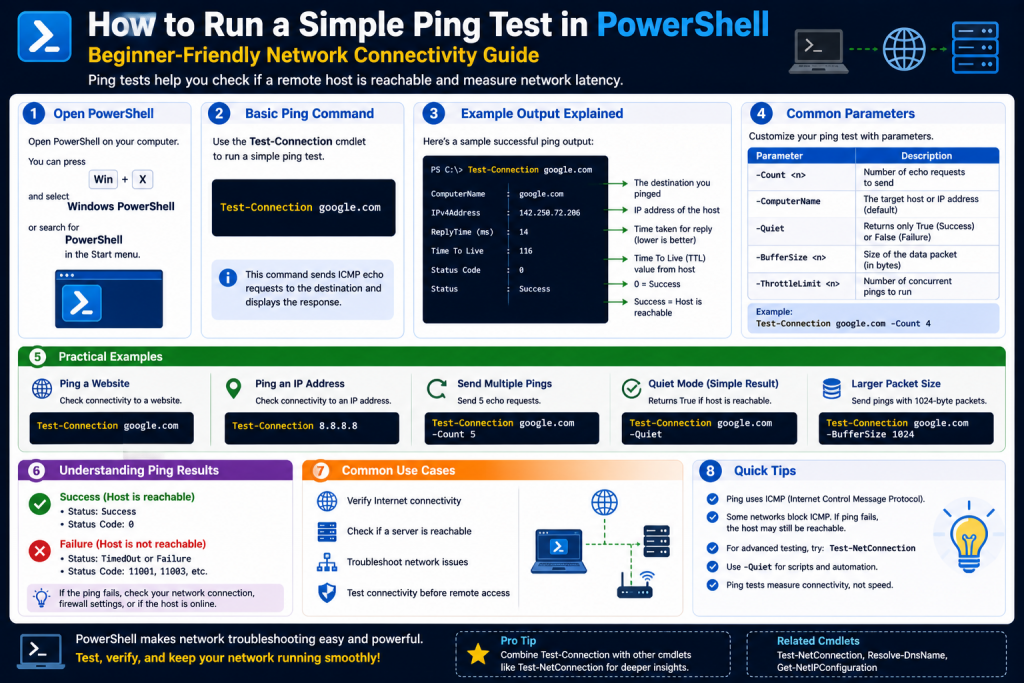
PowerShell has developed into one of the most practical and powerful administrative tools available to IT professionals. While many people still associate it only with Windows system administration, PowerShell is much more than a command shell. It is a full scripting language, automation framework, and systems management environment that can perform tasks ranging from user administration and cloud management to security automation and network diagnostics. One of its most useful functions is helping professionals troubleshoot network communication problems through ping testing.
When systems fail to communicate, websites become unreachable, or services stop responding, one of the first steps in troubleshooting is determining whether a device can actually be reached across the network. This is where ping becomes important. For decades, technicians have relied on the traditional ping command in Command Prompt to test whether a destination device is online. While that classic tool still has value, PowerShell offers a more advanced, flexible, and scriptable approach through the Test-Connection cmdlet.
Learning how to write a simple ping test with PowerShell is one of the most important foundational skills for network administrators, system engineers, help desk technicians, and cybersecurity professionals. It provides not only connectivity testing but also structured diagnostic data that can be automated, filtered, and integrated into larger monitoring solutions. Rather than simply telling you whether a host responds, PowerShell can provide detailed metrics that support intelligent troubleshooting and enterprise automation.
Understanding how to use PowerShell for ping testing starts with understanding what ping actually does, why ICMP matters, and how Test-Connection works differently from older command-line methods. Once those fundamentals are clear, PowerShell becomes an incredibly valuable tool for both simple troubleshooting and large-scale infrastructure diagnostics.
Understanding Ping and ICMP in Network Troubleshooting
Ping is one of the oldest and most widely used network diagnostic methods. It operates through the Internet Control Message Protocol, commonly called ICMP. ICMP is designed to support network diagnostics, error handling, and operational communication between devices.
When you ping a target device, your computer sends an ICMP Echo Request packet to the destination. If the destination is online and configured to respond, it sends back an ICMP Echo Reply. This exchange allows you to verify whether communication is possible between your system and the target.
This simple process provides several critical pieces of information. It can confirm whether the target is reachable, whether routing is functioning correctly, whether DNS is resolving hostnames properly when using names instead of IP addresses, and how long packets take to travel to the target and back. This travel time, commonly called latency, can reveal network congestion, poor routing, or physical distance issues.
For example, if you successfully ping your default gateway, your local network connection is likely functioning properly. If you can reach your gateway but cannot reach an external IP address, the problem may involve your internet connection or firewall policies. If you can reach an external IP but not a hostname, DNS may be the issue. Ping is therefore not just a yes-or-no connectivity test—it is often the first step in layered troubleshooting.
Why PowerShell Is Better Than Traditional Ping
The standard ping command is useful, but it has limitations. It returns plain text output, which is easy for a human to read but difficult for scripts to process efficiently. Traditional ping may tell you that a host replied in 10 milliseconds, but that information is delivered as text strings, requiring extra parsing if you want to automate analysis.
PowerShell changes this by returning structured objects rather than simple text. This is one of PowerShell’s greatest strengths. Each ping result contains properties such as response time, source address, status, and destination. Because these are object properties, you can directly compare values, sort them, export them, or integrate them into scripts.
This object-based design means PowerShell can be used not just for checking whether a host responds, but also for larger tasks such as identifying latency spikes, scanning multiple devices, generating reports, or automating network health monitoring.
For instance, a traditional ping might display a response time, but PowerShell allows you to directly compare that response time against acceptable thresholds. This means you can build scripts that automatically alert you if a device exceeds a certain latency level. This makes PowerShell significantly more useful for enterprise environments where efficiency and automation matter.
Introducing Test-Connection
The primary PowerShell cmdlet used for ping testing is Test-Connection. This cmdlet is PowerShell’s equivalent of the traditional ping command, but with much more flexibility.
At its simplest, Test-Connection allows you to send ICMP packets to a destination IP address or hostname and receive structured results. It supports both local and remote diagnostics and can be customized with multiple parameters to control packet count, timeout values, and behavior.
A basic command might target a public DNS server or internal router. The cmdlet sends ICMP requests and returns detailed response information. Unlike older command-line tools, the returned data can be manipulated immediately through PowerShell’s scripting engine.
This means Test-Connection is not just a troubleshooting command—it is a data collection and automation tool.
Basic Syntax and Structure
Writing a simple PowerShell ping test starts with understanding the syntax structure. The essential command format includes the cmdlet itself and the destination target.
The core concept is straightforward: you specify the target you want to test, and PowerShell performs the ICMP check.
The most common parameter is TargetName, which identifies the device or destination you want to ping. This target can be an IP address, hostname, local system, remote server, or multiple devices.
By default, Test-Connection sends multiple ICMP requests, but this behavior can be adjusted.
Understanding syntax is critical because PowerShell’s structure is more formal than traditional command-line tools. Once mastered, however, this consistency makes scripting far more reliable.
The Importance of TargetName
The TargetName parameter is central to Test-Connection because it tells PowerShell what device to test.
This can include:
Single IP addresses for direct network testing
Hostnames for DNS verification
Arrays of devices for broader infrastructure checks
This flexibility makes PowerShell extremely practical. Instead of testing one host at a time, administrators can quickly test multiple devices in a single operation. For example, an administrator might test a router, file server, and printer simultaneously to determine whether a network issue is isolated or widespread.
Because PowerShell interprets TargetName as string data, it can easily process both individual values and collections. This capability is especially useful in enterprise networks where dozens or hundreds of systems may need to be validated.
Controlling Packet Count with Count
By default, PowerShell sends several ICMP requests during a test, but there are many situations where sending fewer or more packets makes sense.
The Count parameter controls how many ICMP packets are sent to each target.
For quick diagnostics, a single packet may be enough. This is useful when checking whether a device is online without waiting for multiple replies.
For more reliable performance analysis, multiple packets provide a better picture of latency consistency and packet loss.
Reducing count can save time in scripts that test many hosts, while increasing count can help identify intermittent connectivity issues. This flexibility is one of the reasons PowerShell is so useful in network troubleshooting.
Understanding Latency and Response Time
One of the most important pieces of information returned by Test-Connection is response time. This value measures the round-trip time required for a packet to travel from your system to the destination and back.
Latency is usually measured in milliseconds.
Low latency often indicates healthy network performance. High latency may suggest congestion, long geographic distance, overloaded devices, poor routing paths, or ISP issues.
For example, a local gateway might respond in under 1 millisecond, while a remote international server may respond in over 100 milliseconds.
By monitoring latency values, administrators can move beyond simply asking “Is it online?” and instead ask “How healthy is the connection?”
PowerShell makes this especially useful because response time values can be directly analyzed in scripts. This enables automation scenarios such as flagging slow devices, measuring averages, or comparing performance trends over time.
TimeoutSeconds and Faster Troubleshooting
One challenge in large-scale network testing is wasted time waiting for unreachable devices.
The TimeoutSeconds parameter allows administrators to reduce how long PowerShell waits before deciding that a target is unresponsive.
This is especially valuable when scanning many IP addresses or checking systems that are expected to respond quickly.
For example, if you know a local device should respond almost instantly, a shorter timeout can dramatically reduce troubleshooting time.
This parameter becomes even more valuable in scripts where hundreds of devices may be checked automatically. Without timeout optimization, network testing can become unnecessarily slow.
Using PowerShell for Multi-Device Testing
One major advantage of PowerShell is scalability.
Traditional ping generally focuses on one destination at a time, but PowerShell can test multiple systems in a single command. This allows administrators to verify routers, switches, printers, servers, and remote hosts all at once.
This can be useful during outages. For example, if users report network issues, testing multiple infrastructure points simultaneously can quickly reveal whether the problem is limited to a single host or affects broader network segments.
This approach saves time and provides immediate operational insight.
Capturing and Storing Results
Because Test-Connection returns structured objects, results can be stored in variables for later analysis.
This is a major advantage over simple console output. Once stored, administrators can calculate average latency, isolate failures, export results to files, or trigger automated responses.
This capability transforms PowerShell from a troubleshooting tool into a monitoring platform.
For example, storing repeated ping results allows teams to track recurring network instability over time rather than relying only on real-time observations.
Quiet Mode for Simple Online/Offline Checks
Sometimes detailed statistics are unnecessary. In those cases, the Quiet parameter can simplify results by returning only a True or False value.
This is ideal for scripting.
If a device responds, PowerShell returns True.
If it fails, PowerShell returns False.
This makes conditional logic easier and is especially useful for automated health checks, startup scripts, or service validation systems.
Practical Troubleshooting Scenarios
Simple PowerShell ping tests can solve many common issues.
Testing a default gateway can confirm local network connectivity.
Testing an external IP can confirm internet access.
Testing a hostname can validate DNS functionality.
This layered approach allows administrators to narrow down failures quickly.
For example:
Gateway reachable = local network healthy
External IP unreachable = internet or firewall issue
External IP reachable but hostname fails = DNS issue
This troubleshooting model remains one of the most effective first-response techniques in IT.
Security Considerations
Not all systems respond to ICMP. Firewalls often block ping requests as a security measure. This means a failed ping does not always indicate an offline device.
Security policies, endpoint protection, or cloud configurations may intentionally disable ICMP responses.
For this reason, PowerShell ping tests should be considered one diagnostic layer rather than a complete availability assessment.
Best Practices for Effective PowerShell Ping Testing
Use IP addresses when DNS is uncertain
Use hostnames when validating DNS
Keep packet count low for speed unless analyzing stability
Adjust timeout values for efficiency
Store results for reporting
Use Quiet mode for automation
Test multiple infrastructure layers
Do not assume ICMP equals service availability
Once you understand the basics of PowerShell ping testing through Test-Connection, the next step is learning how to expand beyond simple ICMP checks into deeper network diagnostics. Basic ping tests are excellent for confirming whether a host is reachable, measuring latency, or identifying packet loss, but modern enterprise environments often require more than that. Devices may respond to ping while critical services remain inaccessible. Firewalls may block ICMP while web services still function normally. DNS may resolve correctly, but specific application ports may be closed. In these situations, a more advanced approach is required.
This is where PowerShell’s Test-NetConnection cmdlet becomes incredibly valuable. Test-NetConnection is designed to move beyond simple reachability and into broader network troubleshooting. It can verify open TCP ports, perform route tracing, evaluate DNS resolution, identify interface information, and help administrators determine where connectivity problems truly exist.
For IT professionals working in systems administration, networking, cybersecurity, or cloud operations, mastering Test-NetConnection and advanced PowerShell network diagnostics provides a significant operational advantage. It allows troubleshooting to move from “Can I reach the host?” to “Can I reach the service, through the expected path, on the correct port, with acceptable performance?”
This deeper level of visibility is critical in today’s infrastructure, where applications often depend on specific ports, segmented networks, VPN tunnels, hybrid cloud paths, and tightly controlled security policies.
Why Basic Ping Is Not Always Enough
Traditional ping and Test-Connection rely primarily on ICMP Echo Requests and Replies. While this confirms basic Layer 3 connectivity, it does not confirm that the target service is functioning.
For example, a web server may respond to ping while HTTPS is completely unavailable because port 443 is blocked. A remote desktop server may answer ICMP while port 3389 is closed. A database server may be online but inaccessible because SQL ports are filtered.
This distinction is crucial.
A successful ping means:
- The host may be online
- Routing may exist
- ICMP may be allowed
A failed service connection may still mean:
- Firewall blocks service port
- Application crashed
- VPN issue
- ACL restrictions
- NAT misconfiguration
This is why relying only on ping can create false assumptions.
PowerShell’s advanced networking tools solve this problem by testing both connectivity and service accessibility.
Introducing Test-NetConnection
Test-NetConnection is one of PowerShell’s most powerful built-in networking cmdlets. It combines multiple diagnostic capabilities into one command.
Unlike Test-Connection, which focuses mainly on ICMP, Test-NetConnection can:
- Perform ICMP ping
- Test TCP ports
- Run traceroute
- Validate DNS resolution
- Display route selection
- Show source interface details
- Confirm application accessibility
This makes it especially useful for diagnosing service outages, firewall problems, and remote access failures.
For example, if users cannot access a website, a basic ping may show the host is online. Test-NetConnection can determine whether port 443 is actually accepting traffic.
This level of detail is far more practical in real-world troubleshooting.
Basic Test-NetConnection Usage
At its simplest, Test-NetConnection can perform a general connectivity analysis against a target host.
When run against a destination, PowerShell returns information such as:
- Remote address
- Resolved DNS name
- Ping result
- Interface used
- Route details
This expanded data immediately gives administrators more context than a simple ping.
For example, rather than only seeing latency, you may also discover that traffic is leaving through an unexpected network adapter or routing path.
This is especially useful in:
- Multi-homed servers
- VPN troubleshooting
- Hybrid cloud connectivity
- Split-tunnel environments
Testing Specific TCP Ports
One of the most valuable capabilities of Test-NetConnection is port testing.
Many business services depend on specific ports:
- HTTPS uses 443
- HTTP uses 80
- RDP uses 3389
- SQL often uses 1433
- SMB uses 445
- SSH uses 22
A device may be online, but if the required port is unavailable, the service is effectively down.
PowerShell can directly test whether a port is open and accepting connections.
This is essential when diagnosing:
- Web server failures
- Remote desktop issues
- Firewall restrictions
- Database outages
- File sharing problems
For example, if a server responds to ping but remote desktop fails, testing port 3389 can quickly determine whether the issue is service-related or network-related.
This saves time by isolating the exact failure layer.
CommonTCPPort Shortcuts
PowerShell also includes shortcuts for common service ports.
Rather than manually specifying port numbers, administrators can reference standard services directly.
This can simplify troubleshooting and reduce mistakes.
For example:
- HTTP
- HTTPS
- SMB
- RDP
These shortcuts are especially useful for junior administrators or rapid diagnostics where remembering exact port numbers may not be practical.
Traceroute Capabilities
One of the most useful advanced diagnostics features is route tracing.
Sometimes a destination is unreachable not because the destination is down, but because a routing issue exists somewhere along the path.
Traceroute helps identify:
- Routing loops
- ISP bottlenecks
- WAN failures
- Excessive hop counts
- Misconfigured gateways
PowerShell’s route tracing can reveal where packets stop progressing.
For example:
- Hop 1 = Local router
- Hop 2 = ISP edge
- Hop 5 = Timeout
This suggests the problem likely exists beyond the local network.
This capability is especially valuable in:
- MPLS troubleshooting
- SD-WAN diagnostics
- VPN path validation
- Remote office issues
Comparing Test-Connection and Test-NetConnection
Both tools are useful, but each serves different purposes.
Test-Connection is ideal for:
- Basic ICMP testing
- Quick host checks
- Latency measurement
- Automation scripts
Test-NetConnection is better for:
- Port testing
- Service validation
- Route tracing
- DNS checks
- Firewall troubleshooting
Experienced administrators often use both together.
For example:
First use Test-Connection to confirm host reachability.
Then use Test-NetConnection to confirm application accessibility.
This layered method provides faster, more accurate diagnostics.
Continuous Ping Monitoring in PowerShell
Network issues are not always constant. Some failures are intermittent.
A device may:
- Drop packets randomly
- Experience latency spikes
- Disconnect temporarily
- Suffer congestion
Continuous monitoring can reveal patterns missed by one-time tests.
PowerShell can create continuous loops that repeatedly test connectivity over time.
This is useful for:
- ISP troubleshooting
- Wi-Fi stability tests
- WAN monitoring
- VPN reliability
- Latency trend tracking
By combining loops with timestamps, administrators can determine exactly when failures occur.
For example:
- Every day at 2 PM latency spikes
- Every hour packet loss occurs
- VPN disconnects every 30 minutes
These insights are critical for root-cause analysis.
Adding Success and Failure Tracking
Advanced PowerShell monitoring can also track:
- Successful requests
- Failed requests
- Uptime percentages
- Average latency
- Downtime events
This transforms a basic ping loop into a mini monitoring solution.
For example, after 1,000 tests:
- 990 successful
- 10 failed
- 99% reachability
This can help quantify performance problems when reporting to management, ISPs, or service providers.
Performance Issues and Why Scripts Feel Slow
PowerShell network scripts can sometimes feel slower than expected.
Common reasons include:
High timeout values:
If each failed host waits several seconds before timing out, large scans become slow.
Sequential testing:
Testing hosts one at a time can dramatically increase total runtime.
DNS delays:
Hostnames may introduce lookup delays compared to direct IP testing.
Firewall filtering:
Dropped packets may take longer than rejected packets.
To improve performance:
- Reduce timeout values
- Use IPs where possible
- Limit packet counts
- Consider parallel execution
Optimization becomes especially important when scanning large networks.
IPv6 Testing in PowerShell
Modern networks increasingly rely on IPv6, especially in enterprise, ISP, and cloud environments.
Both Test-Connection and Test-NetConnection support IPv6.
This is important because:
- IPv4 may function
- IPv6 may fail
- Dual-stack systems may have partial issues
Testing IPv6 directly can reveal:
- Misconfigured gateways
- DNS AAAA record issues
- Firewall restrictions
- ISP transition problems
As IPv6 adoption grows, administrators who ignore IPv6 diagnostics may overlook critical connectivity failures.
Firewall Troubleshooting with PowerShell
One of the most common causes of connectivity problems is firewall filtering.
PowerShell helps determine whether:
- Host is online
- Port is open
- Service is listening
For example:
Host online + port closed = likely firewall or service issue
This distinction prevents wasted troubleshooting time.
PowerShell is especially useful when diagnosing:
- Windows Defender Firewall
- Edge firewalls
- Cloud security groups
- ACLs
- VPN policy restrictions
This makes it a valuable tool not just for network teams, but also for security teams.
Real-World Troubleshooting Workflow
A professional troubleshooting sequence often looks like this:
Test local gateway
Test external IP
Test DNS hostname
Test application port
Trace route path
Monitor continuously
This progression moves from basic to advanced diagnostics logically.
For example:
Can’t access website:
- Ping gateway works
- Ping internet works
- DNS works
- Port 443 fails
Likely issue: firewall or web service outage
This structured approach dramatically reduces guesswork.
Best Practices for Advanced PowerShell Diagnostics
Use Test-Connection for:
- Reachability
- Latency
- Bulk host checks
Use Test-NetConnection for:
- Port validation
- Firewall checks
- Service diagnostics
- Route tracing
Use continuous monitoring for:
- Intermittent outages
- Long-term patterns
- ISP analysis
Use IP addresses when:
- DNS is uncertain
Use hostnames when:
- DNS itself is being tested
Always interpret failures in context:
- ICMP blocked ≠ host offline
- Ping success ≠ service health
Building Toward Automation
Advanced diagnostics naturally lead toward automation.
Once administrators understand:
- Reachability
- Ports
- Routes
- Monitoring loops
They can begin creating:
- Scheduled health checks
- Automated reports
- Service alerts
- Compliance validation
- Enterprise monitoring scripts
This progression is where PowerShell becomes transformative.
Building Ping Tests with Pester, Scripting Smarter Monitoring, and Creating Enterprise-Ready Connectivity Validation
PowerShell becomes truly powerful when it moves beyond manual troubleshooting and enters the world of automation. While Test-Connection and Test-NetConnection are excellent tools for checking reachability, latency, routing, and service ports, manually running commands every time a problem occurs is not always practical. In enterprise environments, administrators often need recurring validation, repeatable testing, compliance assurance, and automated diagnostics that can continuously confirm whether infrastructure is functioning correctly.
This is where scripting and the Pester testing framework become essential.
Pester is widely known as PowerShell’s testing and validation framework. Originally developed for unit testing PowerShell code, Pester has evolved into one of the most flexible automation tools available for validating system states, network conditions, service behavior, and infrastructure performance. For network administrators, Pester can transform simple ping tests into structured monitoring systems that automatically validate whether devices are reachable, whether latency remains acceptable, and whether systems behave according to operational expectations.
Learning how to build automated ping tests with PowerShell and Pester allows IT professionals to move from reactive troubleshooting to proactive monitoring. Instead of waiting for users to report outages, administrators can create scripts that continuously evaluate network conditions and immediately reveal failures.
This shift is critical because modern IT environments are larger, more distributed, and more dependent on uptime than ever before. Networks now include remote offices, cloud infrastructure, branch devices, VPN tunnels, hybrid systems, and segmented environments. Manual checks do not scale efficiently in these scenarios. Automated PowerShell testing does.
Understanding Pester and Why It Matters
Pester is a PowerShell-based framework designed to test, validate, and verify expected outcomes. At its core, Pester compares actual results against expected behavior.
For example:
- A gateway should respond
- A server should stay under 10ms latency
- A firewall port should remain accessible
- A backup server should remain offline from public networks
- Unauthorized IP addresses should not respond
This is powerful because it transforms PowerShell from a troubleshooting tool into a validation engine.
In practical terms, Pester allows administrators to define what “healthy” looks like and then test whether reality matches that expectation.
For example:
- If latency exceeds 50ms, fail
- If a host does not respond, fail
- If a blocked host responds, fail
This structured logic is ideal for:
- Home labs
- SMB networks
- Enterprise operations
- Security auditing
- Compliance validation
- Baseline monitoring
Rather than manually checking devices one by one, administrators can codify expectations and let PowerShell evaluate them automatically.
Core Structure of a Pester Test
Pester uses a logical structure built around organization and readability.
The three most important concepts are:
- Describe
- Context
- It
Describe defines the broad category being tested.
Context separates related test groups.
It defines individual assertions or expectations.
For example:
Describe might represent “Branch Office Network”
Context might represent “Gateway Tests”
It might represent “Gateway latency should remain below 5ms”
This structure is important because it creates documentation, consistency, and scalability. As environments grow, organized test structures become easier to maintain than random scripts.
Building a Simple Ping Assertion
One of the easiest ways to begin using Pester for network diagnostics is validating that critical systems respond to ping.
Examples include:
- Default gateways
- DNS servers
- Domain controllers
- Firewalls
- Hypervisors
- Cloud endpoints
The goal is not just to check connectivity but to confirm expected performance.
For example:
A gateway may technically respond, but if response time suddenly increases from 1ms to 80ms, that may indicate congestion or switching issues.
By setting thresholds, administrators can detect degradation before total failure occurs.
This is one of the greatest advantages of automated testing: identifying warning signs early.
Testing for Failure Conditions
Effective monitoring is not only about confirming success. It is also about confirming expected failure.
For example:
- Unauthorized devices should not respond
- Retired IP ranges should remain inactive
- Public access to internal ports should fail
- Restricted servers should reject external requests
This concept is especially useful in security validation.
For example, if a decommissioned server suddenly begins responding, that may indicate:
- Rogue device deployment
- Misconfigured DHCP
- IP conflict
- Unauthorized access
Pester can test for these scenarios automatically.
This makes PowerShell useful not only for operations but also for defensive security.
Latency Threshold Monitoring
Latency is often one of the earliest indicators of network degradation.
Common causes of increased latency include:
- Congestion
- WAN saturation
- ISP issues
- Misrouting
- VPN overhead
- Hardware faults
By using Pester, administrators can establish acceptable ranges.
Examples:
- Local gateway < 3ms
- Branch office router < 20ms
- Cloud VPN endpoint < 100ms
If latency exceeds these thresholds, the test fails.
This turns PowerShell into a performance baseline tool.
Over time, teams can refine thresholds based on real operational expectations.
Creating Repeatable Health Checks
The real value of scripting comes from repeatability.
Instead of manually typing commands, organizations can create reusable health checks for:
- Daily startup validation
- Scheduled infrastructure audits
- Patch verification
- Disaster recovery testing
- VPN validation
- Cloud migration checks
For example, after network maintenance:
- Gateway responds
- DNS works
- File server accessible
- Web ports open
- Backup path reachable
This structured checklist dramatically reduces post-change risk.
Automation also reduces human error. Scripts perform checks consistently every time.
Scanning Entire Subnets
PowerShell can scale far beyond individual devices.
Administrators can script tests that evaluate entire IP ranges.
Examples:
- Ping every host in a subnet
- Identify unauthorized devices
- Confirm expected hosts are online
- Detect silent outages
- Validate lab environments
This is especially useful for:
- Asset discovery
- Security auditing
- DHCP troubleshooting
- Device lifecycle management
For example, if only 20 approved devices should exist on a VLAN but 27 respond, this may indicate rogue systems.
This transforms ping from troubleshooting into visibility.
Combining Test-Connection with Conditional Logic
Outside Pester, PowerShell scripts can also automate decisions using standard logic.
For example:
If host reachable:
- Continue deployment
If host unreachable: - Log issue
- Alert admin
- Stop automation
This kind of logic is foundational for:
- Deployment pipelines
- Backup validation
- Security checks
- Monitoring dashboards
By combining network tests with business logic, PowerShell becomes operationally strategic.
Logging and Reporting
Automation is significantly more useful when results are documented.
PowerShell can log:
- Timestamps
- Success/failure
- Latency
- Packet loss
- Port availability
Logs can be exported for:
- Trend analysis
- SLA reporting
- Audit records
- Incident reviews
For example:
“Branch office VPN latency exceeded threshold every Monday at 9 AM.”
This reveals patterns that manual checks may miss.
Reporting also improves communication between teams, allowing administrators to present measurable data rather than anecdotal observations.
Scheduling Automated Tests
A script is powerful, but a scheduled script is transformative.
By integrating PowerShell with Task Scheduler or enterprise automation platforms, administrators can run diagnostics:
- Hourly
- Daily
- Weekly
- After reboot
- Before backups
- During maintenance windows
This allows organizations to validate infrastructure continuously.
For example:
Every 15 minutes:
- Ping gateway
- Test DNS
- Validate VPN
- Confirm web service
This creates lightweight monitoring without expensive software.
Scaling Toward Enterprise Monitoring
While PowerShell is not a full replacement for enterprise monitoring platforms, it can complement them effectively.
PowerShell scripts can:
- Feed monitoring systems
- Validate assumptions
- Perform custom checks
- Test niche infrastructure
- Audit policy compliance
This is especially useful in environments where commercial monitoring tools may not cover every scenario.
For example:
A custom script can verify that backup VLANs remain isolated while still ensuring backup servers respond internally.
This flexibility is one of PowerShell’s greatest strengths.
Common Pitfalls in Automated Ping Testing
Automation introduces complexity, so best practices matter.
Potential mistakes include:
Assuming ICMP equals service health:
A server may respond while the application fails.
Ignoring firewalls:
Some systems intentionally block ping.
Poor timeout settings:
Long timeouts slow large scripts.
Overly aggressive scanning:
Can trigger IDS alerts.
No logging:
Makes trends invisible.
Weak thresholds:
May create false positives.
Strong automation depends on realistic expectations and thoughtful design.
Security Applications of Automated Ping Testing
PowerShell automation also supports cybersecurity.
Examples include:
- Detecting rogue hosts
- Validating segmentation
- Confirming blocked ports
- Monitoring DMZ exposure
- Checking zero-trust boundaries
For example:
A workstation VLAN should never reach a database subnet directly.
A script can test this regularly.
If connectivity suddenly succeeds, segmentation may have failed.
This creates operationalized security validation.
From Ping Tests to Infrastructure Intelligence
As skills grow, PowerShell scripts can evolve into:
- Dashboard feeds
- Alert systems
- Configuration audits
- Compliance tools
- Security baselines
What begins as a simple ping script can become part of a larger operational strategy.
This is why PowerShell remains so valuable in modern IT.
It scales from:
Single ping → Script → Automation → Monitoring → Governance
Best Practices for Long-Term Success
Define expected behavior clearly
Test both success and failure
Use thresholds for latency
Log everything important
Schedule consistently
Review trends regularly
Avoid assuming one test tells the whole story
Layer ICMP, ports, DNS, and route checks
Build modular scripts
Document assumptions
These practices make automation reliable and sustainable.
The Human Advantage
Despite automation, human judgment still matters.
PowerShell scripts provide speed, consistency, and scale—but administrators interpret context.
For example:
A latency spike during backup windows may be normal.
A blocked host may reflect policy, not failure.
Automation should support decision-making, not replace it.
The best administrators combine:
- Automation
- Monitoring
- Interpretation
- Strategy
Conclusion
Automating network diagnostics with PowerShell represents a major shift from reactive troubleshooting to proactive infrastructure management. By combining Test-Connection, Test-NetConnection, scripting logic, and the Pester framework, administrators can create intelligent systems that continuously validate connectivity, monitor performance, detect anomalies, and enforce operational expectations.
Pester provides structure by allowing professionals to define what healthy infrastructure should look like, while PowerShell scripting delivers the flexibility to scale those expectations across networks of nearly any size. Together, they transform simple ping testing into repeatable, measurable, enterprise-ready validation.
Whether used for home labs, business networks, security segmentation, branch office monitoring, or compliance assurance, automated PowerShell testing can dramatically improve reliability while reducing manual workload. More importantly, it helps organizations identify issues earlier, troubleshoot faster, and maintain greater operational confidence.
For IT professionals seeking to grow beyond basic diagnostics, mastering PowerShell automation is a crucial next step. It builds not only technical efficiency but also strategic capability—turning routine network checks into actionable infrastructure intelligence.
Continue exploring the technologies and certification concepts that matter most to you.