Network connectivity is one of the most critical foundations of any IT system. When communication between devices breaks down, even basic operations can become difficult to perform. One of the simplest yet most effective tools for diagnosing connectivity problems is the ping command. It helps verify whether a device is reachable across a network and provides quick feedback on response time.
However, a failed ping does not always indicate a serious outage. It can be caused by a wide range of issues, from incorrect IP configuration to security settings that intentionally block traffic. In environments using advanced security devices such as modern firewalls, ping behavior can also be controlled by design, making troubleshooting more complex.
Understanding how to systematically diagnose ping failures is an essential skill for network administrators and engineers. A structured approach helps isolate the root cause efficiently and prevents unnecessary guesswork.
Understanding What a Ping Test Does
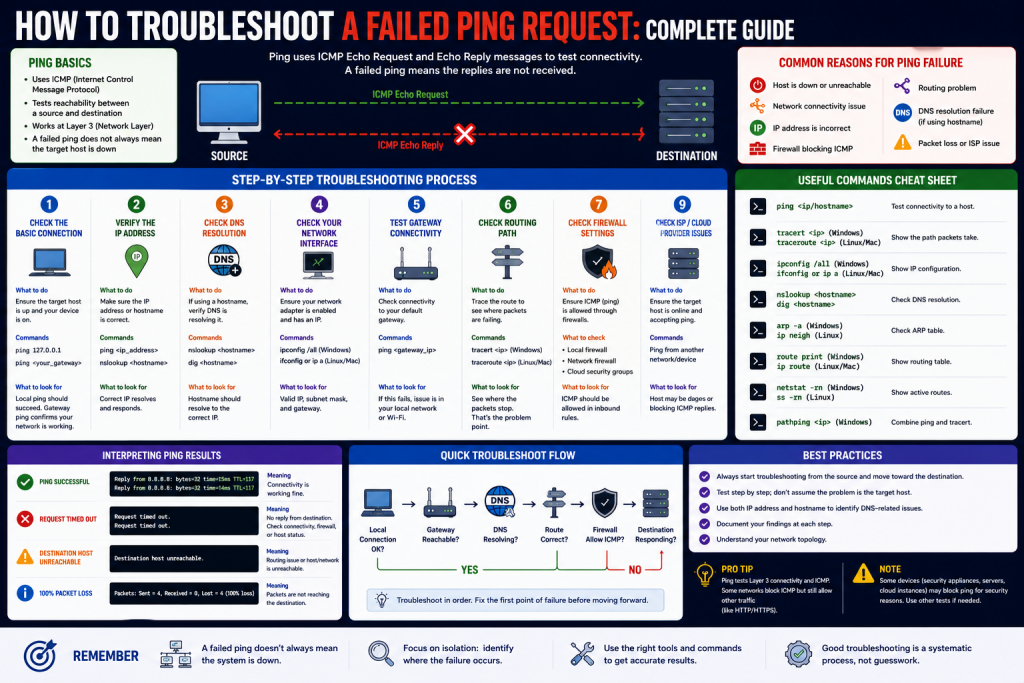
A ping test uses the Internet Control Message Protocol (ICMP) to send small packets of data to a target device. If the device is reachable and configured to respond, it sends back a reply. This confirms two things: the device is online, and network communication between the source and destination is working at a basic level.
When a ping fails, it means the request did not receive a response. This does not automatically mean the device is offline. Instead, it signals that something along the communication path is preventing a successful exchange.
Checking Physical Connectivity First
The first step in troubleshooting any network issue is verifying the physical layer. Many connectivity problems originate from simple hardware issues that are often overlooked.
Ensure that all cables are properly connected and not damaged. Loose Ethernet cables or faulty ports on switches and routers can interrupt communication entirely. Indicator lights on network devices can also provide useful clues. A missing or blinking link light may indicate a physical disconnection or hardware malfunction.
If possible, reconnect cables or replace them with known working ones. Restarting devices such as switches or routers can also help resolve temporary hardware glitches. Although this step may seem basic, it eliminates a large percentage of common network issues early in the process.
Verifying IP Configuration and Network Settings
Once physical connectivity is confirmed, the next step is checking IP configuration. Incorrect settings at this level are a frequent cause of failed ping attempts.
Each device must have a valid IP address, subnet mask, gateway, and DNS configuration. If any of these values are incorrect, communication with other devices will fail.
A common issue is IP address conflict, where two devices are assigned the same address. This causes unpredictable behavior and can result in intermittent connectivity.
It is also important to verify whether the device is using a static IP or receiving one dynamically from a DHCP server. Expired DHCP leases or misconfigured DHCP scopes can prevent proper network access.
DNS issues may also appear related to ping failures, especially when testing using hostnames instead of IP addresses. If name resolution fails, the system may not be able to locate the correct destination.
Testing Basic Connectivity with Ping and Traceroute
After verifying configuration, basic connectivity tools can help narrow down the issue further.
The ping command helps determine whether a target device is reachable. If a response is received, it also provides latency information, which can indicate network performance.
If ping fails, traceroute can be used to identify where the communication is breaking down. This tool maps the path packets take through the network and shows each hop along the way. If the trace stops at a specific point, that location may indicate the source of the problem.
If ping works but applications are still not functioning correctly, the issue may not be related to connectivity but rather to blocked ports or application-level restrictions.
Analyzing Active Connections and Routing Paths
When basic tests do not reveal the issue, examining active connections and routing information becomes necessary.
Network devices maintain tables that show active sessions and routing decisions. These tables help determine how traffic is being directed across the network.
On most systems, routing information shows the gateway used for outbound traffic. If incorrect routes are configured, packets may be sent to the wrong destination or dropped entirely.
Active connection monitoring tools can also help identify whether traffic is leaving the device and whether any responses are being received. If outgoing traffic is visible but no replies are coming back, the issue may lie beyond the local system.
Packet capture tools provide deeper insight by allowing administrators to inspect raw network traffic. This helps confirm whether packets are being sent, received, or blocked along the way.
Understanding Firewall Behavior and ICMP Restrictions
In many modern networks, firewalls play a major role in controlling traffic flow. These devices are often configured to block or restrict ICMP traffic, which directly affects ping results.
Some firewalls do not respond to ping requests by default for security reasons. This prevents external systems from discovering or mapping internal infrastructure. As a result, a failed ping does not necessarily indicate a network problem but may simply reflect a security configuration.
This behavior is commonly implemented to reduce exposure to reconnaissance attacks and limit information leakage about network topology. In such cases, administrators may need to explicitly allow ICMP traffic on specific interfaces or through defined management profiles. Even when ping is blocked, other services like SSH or HTTPS may still function normally, confirming that the device is operational and reachable through alternative secure protocols.
Firewall policies can also vary depending on interface type. For example, management interfaces may allow ping responses, while data interfaces may block them unless explicitly configured otherwise.
Security profiles, intrusion prevention systems, and denial-of-service protection mechanisms can also interfere with ICMP traffic. These layers of protection are designed to reduce exposure to potential attacks but can complicate troubleshooting.
Understanding how firewall rules are applied is essential when diagnosing ping failures in secured environments.
Checking Interface and Management Access Settings
In environments where firewalls or advanced network devices are used, interface configuration plays a critical role in determining whether ping requests are accepted.
Interfaces must often be assigned specific management permissions to allow ICMP traffic. Without these settings, the device will ignore ping requests even if the network path is correct.
Management access settings typically define which services are allowed on an interface. These may include ping, secure shell access, or web-based management. If ping is not enabled, the interface will not respond regardless of network connectivity.
After adjusting interface settings, configuration changes usually need to be applied or committed before they take effect. Once updated, testing can be repeated to confirm whether the issue has been resolved.
Evaluating Security Policies and Traffic Filtering
If basic configuration and interface settings are correct but ping still fails, security policies should be reviewed next.
Security rules may block ICMP traffic between specific zones or networks. Even if devices are properly connected, these policies can prevent communication.
Some systems use zone-based security models where traffic between different network segments is controlled separately. If ICMP is not permitted between zones, ping requests will fail even though other traffic may be allowed.
It is also possible for traffic shaping or inspection policies to drop ICMP packets selectively. These configurations are often used to limit network scanning or reduce unnecessary traffic load.
Reviewing policy logs can help determine whether ICMP traffic is being blocked intentionally.
Using a Structured Troubleshooting Approach
The key to efficiently resolving ping failures is following a structured method rather than random testing. A logical sequence helps eliminate possible causes one by one.
Start with physical checks, then move to IP configuration, followed by connectivity testing. If the issue persists, examine routing, firewall behavior, interface settings, and security policies.
This layered approach ensures that simple issues are resolved early while more complex problems are analyzed systematically.
Common Causes of Ping Failures
Several recurring issues often lead to failed ping requests. These include incorrect IP addressing, disconnected cables, disabled interfaces, firewall restrictions, routing errors, and security policies blocking ICMP traffic. In many cases, the problem is not a complete network failure but a configuration detail that prevents successful communication. Proper diagnosis requires checking each layer carefully to isolate the exact cause of the failure. Administrators should verify network settings, confirm device status, and review security rules to ensure nothing is unintentionally blocking ICMP packets.
Conclusion
Troubleshooting a failed ping request requires both technical understanding and a structured diagnostic approach. While ping is a simple tool, the reasons behind its failure can range from basic hardware issues to complex security configurations.
By systematically checking physical connections, verifying network settings, testing connectivity paths, and reviewing firewall and policy configurations, most ping-related issues can be resolved efficiently.
In modern network environments, especially those with advanced security systems, it is important to remember that a failed ping does not always indicate a problem. It may simply reflect intentional design choices meant to protect infrastructure.
A clear and methodical troubleshooting process ensures faster diagnosis, reduced downtime, and a deeper understanding of how network communication functions in real-world environments.
Continue exploring the technologies and certification concepts that matter most to you.