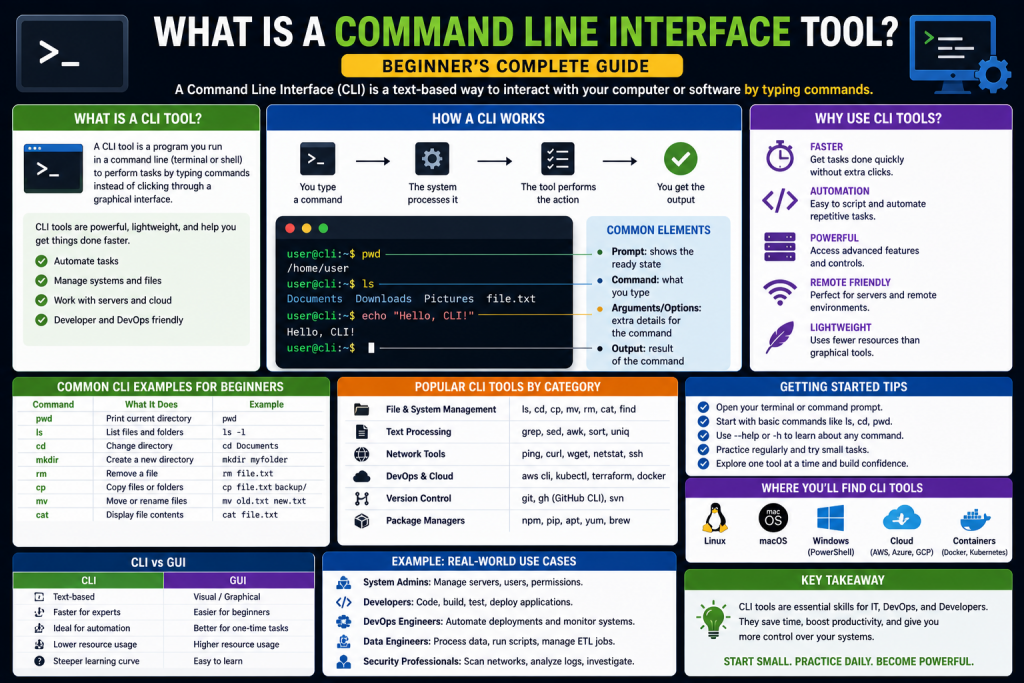
A command line tool is a software program that allows users to interact with a computer using text-based commands instead of graphical buttons, icons, or menus. Instead of clicking through windows and visual interfaces, users type instructions into a terminal or command prompt, and the system responds immediately.
This method of interacting with computers is one of the oldest forms of computing interaction, yet it remains one of the most powerful. While modern applications focus heavily on visual design and user-friendly interfaces, command line tools focus on speed, precision, and control. Because of this, they are still widely used in system administration, software development, cybersecurity, networking, and cloud computing.
Even though they may appear intimidating at first, command line tools are not as complex as they seem. Once the basic structure is understood, they become extremely efficient tools for performing tasks that would otherwise take many clicks and much more time in a graphical environment.
Why Command Line Tools Are Still Important
In today’s world, graphical interfaces are everywhere. Most users interact with computers using icons, touch screens, and menus. However, command line tools continue to play a critical role in modern computing for several reasons.
One of the biggest advantages is speed. A task that might take several steps in a graphical interface can often be completed with a single command. For example, copying, moving, or deleting large numbers of files can be done instantly through commands.
Another major advantage is automation. Command line tools allow users to write scripts that perform repetitive tasks automatically. This is extremely useful in environments where tasks need to be repeated regularly, such as system backups, server maintenance, or software deployment.
Scalability is another important factor. In enterprise environments, administrators often manage dozens, hundreds, or even thousands of systems. Performing tasks manually on each system would be impractical. Command line tools allow these tasks to be executed remotely and across multiple machines at once.
Reliability is also a key reason why command line tools are preferred by professionals. They do not rely on graphical performance or visual rendering. As long as the system is running, command line tools can function even in low-resource environments or remote connections where graphical interfaces may not be available.
Understanding the Command Line Interface
A command line interface is the environment where users type commands and receive output from the system. It is a direct communication channel between the user and the operating system.
Instead of using a mouse to navigate folders or click buttons, users type commands that instruct the system to perform specific actions. These actions might include opening files, managing directories, installing software, or checking system status.
Different operating systems provide different command line environments. Each environment has its own structure and behavior, but the underlying principle remains the same: text-based communication with the system.
On Windows systems, users commonly interact with Command Prompt or PowerShell. Command Prompt is a traditional interface that supports basic system commands. PowerShell is a more modern and powerful tool that supports advanced automation and system management.
On macOS and Linux systems, users interact with a terminal application. Inside the terminal, a shell such as bash or zsh interprets commands and communicates with the operating system. These Unix-based systems share many similarities in their command structures.
The Role of the Shell
The shell is one of the most important components of the command line environment. It acts as an interpreter between the user and the operating system.
When a user types a command, the shell reads it, processes it, and sends instructions to the system to execute the requested action. Once the action is completed, the shell displays the result back to the user.
It is important to understand that the command line interface is not the same as the shell. The interface is the window where commands are entered, while the shell is the program that processes those commands.
Different shells exist for different systems. Each shell may support slightly different syntax, features, or scripting capabilities, but they all serve the same purpose of interpreting user commands.
Basic Structure of Commands
Commands in a command line environment usually follow a simple structure. Understanding this structure is essential for using command line tools effectively.
A command typically consists of three main parts: the command itself, arguments, and optional flags.
The command is the main instruction that tells the system what action to perform. For example, a command might be used to list files, copy data, or check network connections.
Arguments provide additional information to the command. They define what the command should act upon. For example, if a command is used to display the contents of a file, the file name is the argument.
Flags are optional modifiers that change how a command behaves. They allow users to adjust output, enable specific features, or modify the execution process.
For example, a flag might be used to display more detailed output or to run a command continuously instead of just once.
Understanding how these components work together is essential for building effective command line skills.
Working Directory and File System Navigation
One of the most important concepts in command line environments is the working directory. The working directory is the current location in the file system where commands are being executed.
When a user runs a command, the system often assumes that the command should operate within the current directory unless a different location is specified.
For example, if a user wants to create a file or list files, the command will usually apply to the current working directory.
To understand where you are in the file system, command line tools provide specific commands. On macOS and Linux systems, the command used is typically used to print the working directory. On Windows systems, similar functionality is available through different commands depending on the environment.
The file system in a computer is structured like a hierarchy. At the top is the root directory, and beneath it are folders and subfolders that organize files. Navigating this structure using commands is one of the first skills learned when working with command line tools.
Navigating Through Directories
Navigation in command line environments is done using specific commands that allow users to move between folders.
The most commonly used navigation command is the change directory command. This command allows users to move from one location in the file system to another.
For example, a user might move from a home directory to a documents folder, or from one project directory to another.
Different operating systems handle navigation slightly differently. In Windows, switching between drives may require additional steps. In macOS and Linux, all storage locations are part of a single unified structure, making navigation more consistent.
Another important navigation task is listing files and folders. This allows users to see what is inside a directory before interacting with it.
On Windows systems, file listing commands differ depending on the environment being used. Command Prompt and PowerShell provide different ways to display file contents.
On macOS and Linux systems, file listing is typically done using a standard command that supports various options for displaying file details such as permissions, size, and modification time.
Understanding Files and Directories
In command line environments, everything is based on files and directories. A directory is simply a folder that can contain files or other directories.
Files represent data stored on the system, such as documents, scripts, images, or configuration files.
Command line tools allow users to create, delete, move, rename, and modify these files and directories with precision.
Unlike graphical interfaces, where users drag and drop items, command line tools require explicit instructions. This makes operations more predictable and repeatable.
Why Learning Command Line Tools Matters
Learning command line tools is valuable for anyone working in technology. It provides deeper understanding of how operating systems function and how tasks are executed at a system level.
It also improves efficiency. Many tasks that take multiple steps in a graphical interface can be completed in a single command.
For professionals in IT, software development, and cybersecurity, command line skills are essential. Many advanced tools and systems do not provide graphical interfaces, especially in server environments.
Command line knowledge also forms the foundation for automation, scripting, and system administration. Once the basics are understood, users can build powerful workflows that save time and reduce errors.
Getting Comfortable with Command Line Usage
At first, using command line tools may feel unfamiliar. Unlike graphical interfaces, there are no visual cues or buttons to guide the user. Everything depends on remembering commands and understanding how they work.
However, with practice, users become more comfortable and efficient. The key is to start with simple commands such as navigating directories, listing files, and viewing system information.
Over time, users can progress to more advanced tasks such as scripting, automation, and remote system management.
Introduction to Advanced Command Line Usage
Once the basic concepts of command line tools are understood, the next step is moving into more advanced usage. This stage is where command line tools become significantly more powerful and begin to show their real value in professional environments.
At an advanced level, command line tools are not just used for simple file navigation or basic system tasks. Instead, they become tools for automation, system control, remote management, and large-scale operations. These capabilities are what make command line tools essential in fields such as software engineering, cloud computing, cybersecurity, and IT infrastructure management.
The real strength of command line tools becomes visible when users begin combining multiple commands, writing scripts, and automating repetitive workflows. At this level, tasks that would normally take hours of manual work can be completed in seconds.
Understanding Automation in Command Line Environments
Automation is one of the most important concepts in advanced command line usage. It refers to the ability to perform tasks automatically without manual intervention. Instead of executing each command individually, users can group commands together into scripts that run in sequence.
This is especially useful in environments where tasks must be repeated regularly. For example, system backups, log monitoring, software updates, and file organization are all tasks that can be automated.
Automation reduces human error, saves time, and ensures consistency. Once a script is written correctly, it will perform the same actions every time it is executed, regardless of user involvement.
Different operating systems support automation in different ways. Windows uses batch files and PowerShell scripts, while macOS and Linux use shell scripts. Each of these scripting methods serves the same purpose but follows different syntax rules.
Introduction to Shell Scripting
Shell scripting is the process of writing a sequence of command line instructions in a file that can be executed as a single program. Instead of typing commands one by one, users can place them inside a script and run them together.
A script can perform a wide range of tasks, including file management, system configuration, and process automation. This makes scripting one of the most powerful features of command line tools.
On Windows systems, batch scripts are one of the oldest forms of automation. These scripts use simple command syntax and are executed by the Command Prompt. However, modern Windows environments increasingly rely on PowerShell scripts, which offer far more advanced capabilities. Batch scripts are still useful for lightweight tasks such as file copying, simple loops, and basic system operations, but they lack advanced error handling and data processing features.
PowerShell, on the other hand, supports object-based output, making it more powerful for complex administrative tasks. It also integrates deeply with the Windows operating system, allowing administrators to manage services, registry settings, and network configurations more efficiently. Because of this flexibility, PowerShell has become the preferred tool for automation in enterprise environments. PowerShell scripts are object-based, meaning they can handle complex data structures and interact deeply with the operating system. This makes them suitable for enterprise-level automation tasks.
On macOS and Linux systems, shell scripts are commonly written for bash or similar shells. These scripts are widely used for system administration and development tasks. They allow users to automate everything from simple file operations to complex system configurations.
Building Simple Automation Workflows
A good way to begin learning automation is by starting with simple tasks. For example, copying files from one location to another or creating backups of important directories.
A basic automation script might include commands that create a folder, copy files into it, and compress the result. Once written, this script can be executed whenever needed, eliminating the need to repeat the process manually.
As users become more comfortable, scripts can be expanded to include conditional logic, loops, and error handling. This allows for more intelligent automation that can adapt to different situations.
For example, a script might check if a file exists before copying it, or it might only process files that have been modified within a certain time frame.
Customization of the Command Line Environment
Another important aspect of advanced command line usage is customization. Users can modify their command line environment to make it more efficient and personalized.
Customization helps reduce repetitive typing and improves workflow efficiency. It also allows users to tailor the environment to their specific needs.
One of the most common customization techniques is the use of aliases. An alias is a shortcut for a longer command. Instead of typing a long command repeatedly, a user can assign it a short name.
For example, a long file listing command can be shortened to a simple two-letter alias. This saves time and reduces typing effort.
On macOS and Linux systems, aliases are typically defined in configuration files that load every time a terminal session starts. On Windows PowerShell, similar customization is done through profile scripts.
Another important customization feature is environment variables. These are system-wide or user-specific values that can be accessed by commands and programs.
Environment variables are often used to store configuration settings, file paths, or system information. They allow programs to behave dynamically based on the environment in which they are running.
Understanding PATH and Command Accessibility
The PATH variable is one of the most important environment variables in command line systems. It defines the directories that the system searches when a command is executed.
When a user types a command, the system looks through the directories listed in PATH to find the corresponding program. If the program is not found in any of these directories, the command will fail.
By modifying the PATH variable, users can make custom programs accessible from anywhere in the system. This eliminates the need to specify full file paths every time a program is executed.
Proper management of the PATH variable is essential for efficient command line usage, especially in development environments.
Remote Access and System Administration
Command line tools are widely used for remote system management. Instead of physically accessing a machine, users can connect to it remotely and execute commands as if they were working locally.
One of the most common methods for remote access is Secure Shell, commonly known as SSH. SSH allows secure communication between two systems over a network.
With SSH, users can log into remote servers, manage files, run commands, and monitor system performance.
Security is a major aspect of SSH usage. Instead of relying on passwords, many systems use key-based authentication. This involves generating a pair of cryptographic keys, one private and one public. The public key is placed on the remote system, while the private key remains on the user’s device.
Once configured, SSH allows secure and efficient remote administration, making it essential for managing servers and cloud infrastructure.
Task Scheduling and Background Execution
Another powerful feature of command line environments is task scheduling. This allows users to automate tasks based on time or system events.
On Windows systems, task scheduling is handled by a built-in system that allows users to create tasks that run at specific times or under specific conditions. These tasks can execute scripts, run programs, or perform system maintenance. This feature is especially useful for automating repetitive operations such as disk cleanup, software updates, log generation, or system backups. Users can configure tasks to run daily, weekly, monthly, or even when a specific event occurs, such as system startup or user login.
Each task can be customized with detailed settings including triggers, actions, conditions, and security options, allowing precise control over execution behavior. For example, a task can be set to run only when the system is idle or when connected to a specific network. Advanced users often use command line tools like schtasks.exe or PowerShell cmdlets to create and manage scheduled tasks more efficiently. This makes it possible to automate large-scale operations across multiple systems without manual intervention. Properly configured task scheduling improves system reliability, reduces human workload, and ensures that important maintenance activities are performed consistently, even when users are not actively monitoring the system.
On macOS and Linux systems, task scheduling is commonly handled using cron. Cron allows users to define schedules for running commands automatically at specific intervals.
For example, a user might schedule a script to run every night to back up important files or clean temporary data.
Task scheduling is especially useful for maintaining systems without manual intervention.
Version Control and Command Line Integration
Version control systems are another major area where command line tools are heavily used. One of the most widely used version control systems is Git.
Git allows users to track changes in files, collaborate with others, and manage different versions of a project.
While graphical interfaces exist for Git, the command line version offers the most control and flexibility. It allows users to perform advanced operations such as branching, merging, and rebasing with precision.
Many developers prefer using Git through the command line because it integrates easily into scripting and automation workflows.
Development Tools and Command Line Dependency
Many development tools rely heavily on command line usage. Compilers, package managers, and build tools are often controlled through terminal commands.
On macOS systems, installing development tools often requires command line utilities. These tools provide essential functionality for building and managing software projects.
Without command line tools, many development environments would not function properly. This makes them a critical part of modern software development workflows.
Command Line in Cloud and Server Environments
In cloud computing and server management, command line tools are essential. Most servers do not use graphical interfaces due to performance and resource efficiency.
Instead, administrators use command line tools to configure systems, deploy applications, and manage infrastructure.
Cloud platforms also rely heavily on command line interfaces for deployment and automation. Users can create, modify, and manage cloud resources using command-based tools instead of graphical dashboards.
This approach allows for faster scaling, better automation, and improved control over infrastructure.
Practical Benefits of Advanced Command Line Usage
Advanced command line usage provides several practical benefits. It improves productivity by reducing manual effort and allowing tasks to be automated.
It also enhances precision, as commands execute exactly as written without interpretation errors.
Another benefit is scalability. Command line tools can be used to manage single systems or large networks of machines with equal efficiency.
In professional environments, command line skills are often required because they enable efficient system management and automation.
Introduction to Practical Command Line Mastery
At this stage of understanding command line tools, the focus shifts from learning commands and automation to applying them in real-world environments. This includes system maintenance, security management, backups, troubleshooting, and long-term system reliability.
Command line tools are not just about executing instructions. In professional environments, they are used to maintain entire infrastructures, secure systems, recover from failures, and ensure smooth operation of services.
This level of usage is where command line knowledge becomes truly valuable. It moves beyond basic interaction and automation into system-level control and responsibility.
The Importance of Security in Command Line Environments
Security is one of the most critical aspects of working with command line tools. Since these tools provide direct access to the operating system, incorrect usage can lead to serious consequences such as data loss, system corruption, or unauthorized access.
Unlike graphical interfaces that often include warnings or confirmations, command line tools execute instructions exactly as written. This makes accuracy extremely important.
One of the most important security practices is verifying commands before execution. Users must always ensure that a command is correct, especially when it involves deleting files, modifying system settings, or changing permissions.
Many systems provide built-in methods to verify commands or locate where they originate. This helps users confirm that they are executing the correct tool and not a malicious or unintended version.
Another important practice is limiting administrative access. Many systems separate normal user permissions from administrative privileges. Administrative access should only be used when necessary because it allows full control over the system.
Understanding File Permissions and Access Control
File permissions are a fundamental part of system security. They determine who can read, modify, or execute files within a system.
Different operating systems handle permissions in different ways.
Windows systems use a detailed permission model that allows fine-grained control over access. This system defines permissions for individual users and groups, allowing administrators to specify exactly what each user can do.
These permissions can include actions such as reading, writing, modifying, or deleting files and folders. By applying different levels of access, administrators can ensure that sensitive data remains protected while still allowing users to perform their required tasks. Windows also supports inheritance, meaning permissions assigned to a parent folder can automatically apply to subfolders and files unless explicitly changed. This makes large-scale permission management more efficient in complex systems. Additionally, permissions can be combined with audit settings to track who accessed or modified specific resources, improving accountability and security.
In enterprise environments, this model is essential for enforcing organizational policies and preventing unauthorized changes. Advanced tools such as security management consoles and command line utilities allow administrators to configure and troubleshoot permissions at a deeper level. When used correctly, this system helps maintain both flexibility and strong protection across shared systems, ensuring that users only have access to the resources necessary for their roles while minimizing security risks.
Permissions can be inherited from parent directories or explicitly defined for specific files. This makes the system flexible but also complex.
Unix-based systems such as macOS and Linux use a simpler permission structure. Each file has three categories of access: owner, group, and others. Each category can have permissions for reading, writing, and executing files.
This system is easier to understand but still powerful enough for most use cases. It is widely used in server environments due to its simplicity and reliability.
Understanding permissions is essential for protecting sensitive data and preventing unauthorized access.
Command Line Tools for System Monitoring
System monitoring is another important use of command line tools. Administrators often need to check system performance, monitor resource usage, and identify problems.
Command line tools provide real-time access to system information such as CPU usage, memory consumption, disk activity, and running processes.
These tools are especially useful in server environments where graphical interfaces are not available or practical.
Monitoring tools allow administrators to detect performance issues early and take corrective action before they become serious problems.
For example, if a system is running slowly, command line tools can help identify which processes are consuming the most resources.
Process Management and Control
Processes are programs that are currently running on a system. Command line tools allow users to view, manage, and control these processes.
Users can list active processes, stop unresponsive programs, or adjust process priorities.
This level of control is important for maintaining system stability and performance.
In some cases, a single process may consume too many system resources, causing slowdowns. Command line tools allow administrators to identify and stop such processes quickly.
Process management is also important in automation environments where multiple tasks run simultaneously.
Backup and Recovery Using Command Line Tools
Data backup and recovery are essential parts of system maintenance. Command line tools provide powerful ways to create backups and restore data when needed.
Backups can be automated to run at regular intervals, ensuring that important data is always protected.
Instead of manually copying files, command line tools can synchronize directories, compress data, and store backups efficiently.
Incremental backups are especially useful because they only copy changed data, reducing storage usage and processing time.
Recovery tools allow administrators to restore systems after failures, corruption, or accidental deletion. This makes command line tools a key part of disaster recovery planning.
File System Maintenance and Repair
File systems can sometimes become corrupted due to unexpected shutdowns, hardware issues, or software errors. Command line tools provide utilities for checking and repairing file systems.
These tools scan storage devices for errors and attempt to fix them automatically.
Regular maintenance helps ensure data integrity and prevents long-term issues.
Disk checking tools can identify bad sectors, repair file structures, and recover lost data in some cases.
This level of maintenance is especially important in server environments where system uptime is critical.
Network Management with Command Line Tools
Networking is another area where command line tools play an essential role. They are used to configure network settings, test connectivity, and troubleshoot issues.
Administrators can check whether a system is connected to the network, test communication with other devices, and diagnose routing problems.
Network diagnostic tools help identify issues such as packet loss, latency, or incorrect configurations.
In large-scale environments, command line tools are often used to manage multiple network devices simultaneously.
This makes them essential for maintaining stable and reliable network infrastructure.
Remote System Administration and Control
Remote access is one of the most powerful features of command line tools. It allows users to control systems located anywhere in the world.
Through secure connections, administrators can log into remote machines and perform tasks as if they were physically present.
This is especially important in cloud computing and server management environments where systems are often located in data centers.
Remote access reduces the need for physical interaction with machines and allows for faster response times when issues arise.
It also enables centralized management of multiple systems from a single location.
Troubleshooting and Problem Solving
Command line tools are widely used for troubleshooting technical issues. When systems behave unexpectedly, command line diagnostics provide detailed information that helps identify the root cause. These tools can reveal hidden system logs, error messages, and background processes that are not always visible in graphical interfaces. By analyzing this data, users can pinpoint whether the issue is related to hardware, software configuration, network connectivity, or resource limitations.
Command line troubleshooting is especially useful because it allows real-time monitoring and direct interaction with the system. This makes it easier to isolate problems quickly, test potential fixes, and verify results without relying on additional software tools or complex interfaces.
Logs, system messages, and error outputs can all be accessed through command line tools.
This information is often more detailed than what is available through graphical interfaces.
Troubleshooting using command line tools allows for precise diagnosis and faster problem resolution.
Efficiency and Performance Advantages
One of the biggest advantages of command line tools is efficiency. They use minimal system resources compared to graphical interfaces.
Because they do not rely on visual rendering, they can run smoothly even on low-performance systems.
This makes them ideal for server environments, embedded systems, and remote connections.
Command line tools also allow batch processing, where multiple tasks are executed in sequence without user intervention.
This significantly improves productivity and reduces workload.
Learning Curve and Skill Development
While command line tools offer many advantages, they do require a learning process. Beginners may find them challenging at first because there are no visual cues or menus.
However, once the basic concepts are understood, users often find command line tools more efficient than graphical alternatives.
Learning command line tools builds a strong foundation for advanced technical skills such as system administration, networking, cybersecurity, and software development.
With practice, users become faster and more confident in executing commands and managing systems.
Real-World Applications of Command Line Tools
Command line tools are used in almost every area of modern computing.
In software development, they are used for compiling code, managing dependencies, and version control.
In cybersecurity, they are used for scanning systems, analyzing network traffic, and detecting vulnerabilities.
In cloud computing, they are used to deploy applications, manage servers, and scale infrastructure.
In data management, they are used to process large datasets and automate data workflows.
Their versatility makes them essential tools across industries.
Common Mistakes and Best Practices
One common mistake when using command line tools is executing commands without fully understanding their effect. Because commands are powerful, even small errors can have significant consequences. This often happens when users copy commands from tutorials or forums without checking what each part actually does.
A single incorrect flag or misplaced path can lead to deleting important files, changing system settings, or disrupting running services. In some cases, users also forget to verify the working directory, which causes commands to run in the wrong location. Developing the habit of carefully reading documentation, testing commands in safe environments, and double-checking syntax helps reduce these risks and builds confidence when working with command line tools.
Another mistake is ignoring permissions and security settings, which can lead to unauthorized access or system instability.
Best practices include carefully reviewing commands before execution, using test environments when possible, and maintaining regular backups.
It is also important to gradually build skills instead of attempting complex operations too early.
Conclusion
Command line tools are a foundational part of modern computing. They provide direct, efficient, and powerful access to operating systems and enable users to perform a wide range of tasks from simple file management to advanced system administration.
Throughout this guide, we explored how command line tools work, how they are used in automation and scripting, and how they play a critical role in security, maintenance, and troubleshooting.
They may appear simple on the surface, but their capabilities are extremely powerful. With proper understanding and practice, command line tools allow users to take full control of systems, automate complex workflows, and manage infrastructure at scale.
Mastering command line tools is not just about learning commands. It is about developing a deeper understanding of how computers work and how systems can be controlled efficiently and safely.
For anyone pursuing a career in technology, these skills are essential and provide a strong foundation for long-term success in technical fields.
Continue exploring the technologies and certification concepts that matter most to you.