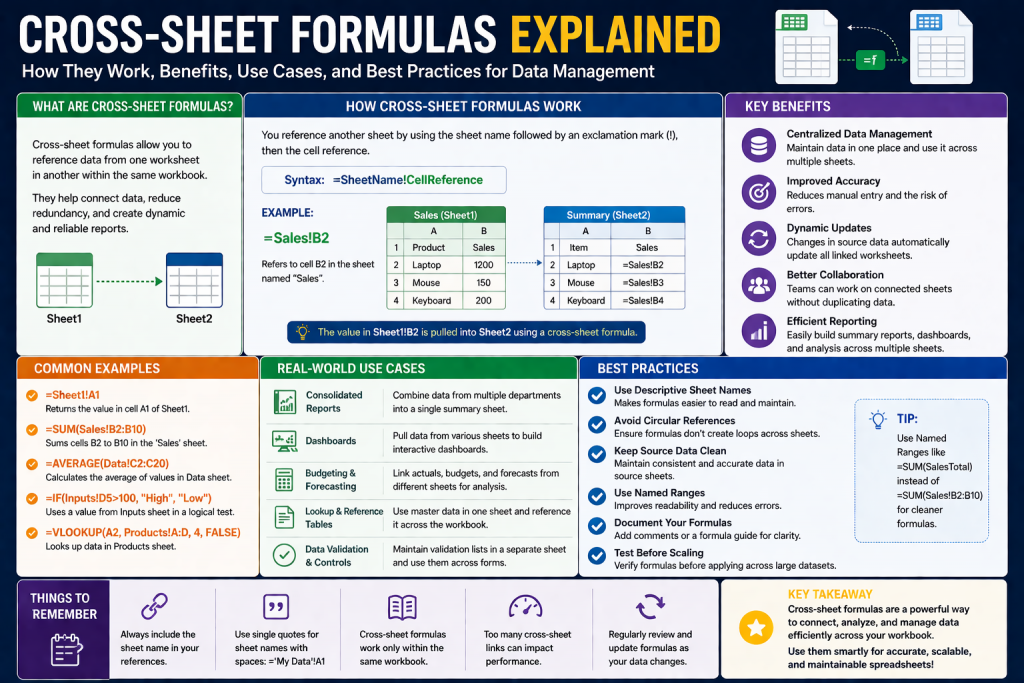
Microsoft Excel is one of the most widely used tools for managing and analyzing data. In many real-world situations, data is not stored in a single worksheet but is distributed across multiple sheets within the same workbook. This is especially common in business environments where data may be separated by time periods, departments, product categories, or regions. As a result, the ability to use formulas across different sheets becomes an essential skill for anyone working with Excel.
Cross-sheet formulas allow you to reference and calculate data from multiple worksheets without duplicating information. Instead of copying values manually, you can link them dynamically. This means that when the original data changes, your formulas automatically update to reflect those changes. This feature helps maintain accuracy and ensures consistency across your workbook.
Understanding how to use formulas across sheets not only improves efficiency but also makes your spreadsheets more organized and scalable. Whether you are a beginner or someone looking to improve your Excel skills, learning this concept is a valuable step forward.
Why Cross-Sheet Formulas Are Important
Working with multiple sheets is a natural part of using Excel in professional and personal projects. As datasets grow larger, keeping everything in a single worksheet becomes impractical. Cross-sheet formulas help you manage this complexity effectively.
One of the primary benefits is organization. By separating data into different sheets, you can keep your workbook clean and structured. For example, instead of having all sales data in one place, you can create separate sheets for each month. This makes it easier to navigate and maintain.
Another important advantage is accuracy. When you use formulas to link data between sheets, updates are reflected automatically. This eliminates the need for manual updates and reduces the risk of human error.
Efficiency is another key reason to use cross-sheet formulas. Instead of copying and pasting data repeatedly, you can reference it directly. This saves time and ensures that your data remains consistent.
Scalability is also a major factor. As your data grows, you can continue adding new sheets without disrupting your existing formulas. This makes cross-sheet formulas ideal for long-term projects.
Understanding the Basic Syntax
At the core of cross-sheet formulas is a simple and consistent syntax. Every reference to a cell in another sheet follows this structure:
SheetName!CellReference
This format tells Excel where to find the data you want to use. The sheet name comes first, followed by an exclamation mark, and then the cell reference.
For example, if you want to reference cell A1 in a sheet named Sales, you would write:
=Sales!A1
This formula retrieves the value from cell A1 in the Sales sheet and displays it in the current cell.
If the sheet name contains spaces, you need to enclose it in single quotes. For example:
=’Monthly Sales’!A1
Understanding this syntax is essential because it forms the foundation for all cross-sheet formulas.
Getting Started with the Point and Click Method
One of the easiest ways to create cross-sheet formulas is by using the point and click method. This approach is especially useful for beginners because it minimizes typing errors and helps you visualize what you are doing.
To start, select the cell where you want your result to appear. Then type an equal sign. This tells Excel that you are about to create a formula.
Next, click on the sheet that contains the data you want to reference. Once you are on that sheet, select the desired cell. Excel will automatically insert the correct reference into your formula.
For example, if you click on cell A1 in Sheet2, your formula will look like this:
=Sheet2!A1
You can then return to your original sheet and continue building your formula.
This method is intuitive and allows you to construct formulas step by step without worrying about syntax errors.
Building Simple Formulas Across Sheets
Once you know how to reference a cell from another sheet, you can start combining multiple references in a single formula. This allows you to perform calculations using data from different sheets.
For example, if you want to add values from cell A1 in three different sheets, you can write:
=Sheet1!A1 + Sheet2!A1 + Sheet3!A1
This formula adds the values from all three sheets and displays the result.
You can also use other mathematical operations. For instance, if you want to multiply values, you can write:
=Sheet1!A1 * Sheet2!A1
For more complex calculations, you can combine different operations in one formula.
Using Parentheses for Accurate Calculations
When working with multiple operations in a formula, it is important to control the order in which calculations are performed. Excel follows the standard order of operations, which means that multiplication and division are performed before addition and subtraction.
To ensure that your formula produces the correct result, you can use parentheses to control the calculation order.
For example:
=(Sheet1!A1 + Sheet2!A1) * Sheet3!A1
In this formula, Excel first adds the values from Sheet1 and Sheet2, and then multiplies the result by the value from Sheet3.
Without parentheses, the formula would be calculated differently, which could lead to incorrect results.
Understanding how to use parentheses is essential when building complex formulas across sheets.
Navigating Between Sheets While Creating Formulas
When using the point and click method, you will often need to switch between different sheets. Excel makes this process simple and seamless.
After typing the equal sign, you can click on any sheet tab at the bottom of the workbook. Once you select a cell, Excel automatically adds the reference to your formula.
You can then type an operator, such as a plus sign, and move to another sheet to select the next cell.
This process can be repeated as many times as needed, allowing you to build complex formulas that include multiple sheet references.
Navigating between sheets in this way helps you avoid mistakes and ensures that your formulas are accurate.
Writing Cross-Sheet Formulas Manually
While the point and click method is useful, there are times when it is faster to write formulas manually. This is especially true when you are working with many references or when you are already familiar with the syntax.
To write a cross-sheet formula manually, simply type the sheet name followed by an exclamation mark and the cell reference.
For example:
=January!B12
This formula retrieves the value from cell B12 in the January sheet.
Writing formulas manually gives you more control and can speed up your workflow once you are comfortable with the syntax.
Working with Multiple Sheet References
In many cases, you will need to reference multiple sheets in a single formula. This is common when you are combining data from different sources.
For example, if you want to calculate the total of a specific cell across several sheets, you can use a function like SUM.
=SUM(Sheet1!B13, Sheet2!B13, Sheet3!B13)
This formula adds the values from cell B13 in each of the specified sheets.
Using functions like SUM makes your formulas more efficient and easier to read.
Handling Sheet Names with Spaces
Sometimes, sheet names include spaces or special characters. In these cases, you need to enclose the sheet name in single quotes.
For example:
=’Sales Report’!A1
If you are referencing multiple sheets with spaces in their names, each one must be enclosed in quotes.
This ensures that Excel correctly interprets the sheet name.
Avoiding Common Errors
When working with cross-sheet formulas, it is important to be aware of common errors and how to avoid them.
One common issue is incorrect sheet names. If the name does not match exactly, Excel will not be able to find the reference.
Another problem is forgetting the exclamation mark. Without it, the formula will not work correctly.
Errors can also occur if a referenced sheet is deleted or renamed. In such cases, Excel may display an error message.
To prevent these issues, always double-check your formulas and ensure that all references are correct.
Practical Use Cases
Cross-sheet formulas are useful in a wide range of scenarios. For example, you can use them to create summary sheets that combine data from multiple worksheets.
In a financial workbook, you might have separate sheets for each month. A summary sheet can use formulas to calculate total revenue, expenses, and profit across all months.
In a project management context, you can track progress across different teams and consolidate the data into a single report.
These practical applications demonstrate the value of learning how to use formulas across sheets.
Benefits of Mastering Cross-Sheet Formulas
Learning how to use cross-sheet formulas can significantly improve your productivity in Excel. It allows you to work more efficiently, reduce errors, and manage large datasets with ease.
As you become more comfortable with these techniques, you will be able to build more advanced formulas and create more powerful spreadsheets.
This skill is highly valuable in many fields, including finance, data analysis, and business management.
Expanding Your Skills with Cross-Sheet Formulas
After understanding the fundamentals of referencing cells across worksheets, the next step is to explore more advanced ways to use cross-sheet formulas in Excel. As your workbooks grow in size and complexity, basic cell references may not be enough. You will often need to work with ranges, apply functions across multiple sheets, and build formulas that adapt to changing data.
This part focuses on enhancing your ability to work efficiently with multi-sheet data. You will learn how to use ranges, apply built-in functions across sheets, and structure formulas that are both flexible and easy to maintain.
Working with Cell Ranges Across Sheets
So far, you have seen how to reference individual cells from different sheets. However, in many real-world scenarios, you will need to work with multiple cells at once. This is where ranges come into play.
A range is simply a group of cells. In Excel, ranges are written using the starting and ending cell references separated by a colon.
For example:
=Sheet1!A1:A10
This reference includes all cells from A1 to A10 in Sheet1.
You can use ranges across sheets in the same way you use single cell references. For example, if you want to calculate the total of a range in another sheet, you can write:
=SUM(Sheet2!A1:A10)
This formula adds all values in the specified range.
Using ranges makes your formulas more efficient and reduces the need to reference each cell individually.
Using Functions Across Multiple Sheets
Excel provides a wide range of built-in functions that can work across multiple sheets. These functions allow you to perform calculations more efficiently and with less manual effort.
One of the most commonly used functions is SUM. Instead of adding each cell manually, you can use SUM to combine values from different sheets.
For example:
=SUM(Sheet1!A1, Sheet2!A1, Sheet3!A1)
This formula adds the values from cell A1 in three different sheets.
Functions like AVERAGE, MIN, and MAX can also be used in a similar way. For example:
=AVERAGE(Sheet1!B1, Sheet2!B1, Sheet3!B1)
This calculates the average of values from multiple sheets.
Using functions not only simplifies your formulas but also makes them easier to read and maintain.
Referencing Consecutive Sheets
When working with multiple sheets that follow a consistent naming pattern, Excel allows you to reference them as a group. This is known as a 3D reference.
A 3D reference lets you include a range of sheets in a single formula. This is especially useful when your sheets represent a sequence, such as months or quarters.
For example:
=SUM(Sheet1:Sheet3!A1)
This formula adds the values from cell A1 in Sheet1, Sheet2, and Sheet3.
This approach is much more efficient than referencing each sheet individually. It also makes your formulas easier to update. If you add a new sheet within the specified range, Excel automatically includes it in the calculation.
Practical Use of 3D References
3D references are particularly useful in financial and reporting scenarios. For example, if you have separate sheets for each month, you can use a 3D reference to calculate total sales for the year.
Instead of writing a long formula with multiple sheet references, you can simply write:
=SUM(January:December!B2)
This formula adds the value in cell B2 across all monthly sheets.
This method saves time and reduces the risk of errors. It also makes your workbook more scalable, as you can easily extend the range to include additional sheets.
Using Lookup Functions Across Sheets
Lookup functions are another powerful feature in Excel. They allow you to search for specific values in a dataset and return corresponding results.
One of the most commonly used lookup functions is VLOOKUP. You can use VLOOKUP across sheets by specifying the table array in another sheet.
For example:
=VLOOKUP(A2, Sheet2!A1:C10, 2, FALSE)
In this formula, Excel searches for the value in A2 within the range A1:C10 in Sheet2. If a match is found, it returns the value from the second column.
Using lookup functions across sheets is useful when you have related data stored in different locations. For example, you might have a product list in one sheet and pricing information in another.
Understanding Absolute and Relative References
When working with formulas, it is important to understand the difference between absolute and relative references. This becomes even more important when dealing with multiple sheets.
A relative reference changes when you copy a formula to another cell. For example:
=Sheet1!A1
If you copy this formula down one row, it becomes:
=Sheet1!A2
An absolute reference, on the other hand, remains fixed. You can create an absolute reference by adding dollar signs:
=Sheet1!$A$1
This reference will not change when the formula is copied.
Using the correct type of reference ensures that your formulas behave as expected when copied or moved.
Combining Multiple Functions
As your formulas become more complex, you may need to combine multiple functions in a single expression. This allows you to perform advanced calculations across sheets.
For example, you can combine SUM and IF to calculate values based on specific conditions:
=SUM(IF(Sheet1!A1:A10>10, Sheet1!A1:A10, 0))
While this type of formula can be powerful, it is important to structure it carefully to avoid errors.
Combining functions requires a clear understanding of how each function works and how they interact with each other.
Using Named Ranges Across Sheets
Named ranges provide a way to assign a meaningful name to a group of cells. This can make your formulas easier to understand and manage.
For example, instead of writing:
=SUM(Sheet1!A1:A10)
You can define a named range called SalesData and write:
=SUM(SalesData)
Named ranges can be used across sheets, making them a powerful tool for organizing your formulas.
They also make your workbook more user-friendly, especially when sharing it with others.
Managing Errors in Cross-Sheet Formulas
Errors are a common part of working with formulas, especially when dealing with multiple sheets. Understanding how to handle these errors is essential.
One common error is #REF!, which occurs when a referenced cell or sheet is deleted. Another is #VALUE!, which indicates an issue with the data type.
To handle errors gracefully, you can use the IFERROR function:
=IFERROR(Sheet2!A1, “Data Not Found”)
This formula returns a custom message instead of an error.
Using error-handling functions improves the usability of your workbook and makes it more professional.
Keeping Formulas Organized
As your workbook grows, it is important to keep your formulas organized. This makes them easier to understand and maintain.
One way to do this is by using consistent naming conventions for your sheets. For example, you can name your sheets by month or category.
Another approach is to break complex formulas into smaller parts. This makes them easier to debug and reduces the risk of errors.
You can also use comments or notes to explain how your formulas work.
Improving Performance with Efficient Formulas
Large workbooks with many cross-sheet formulas can sometimes become slow. To improve performance, it is important to use efficient formulas.
Avoid referencing entire columns when possible, as this can increase calculation time. Instead, use specific ranges.
You should also minimize the use of volatile functions, which recalculate every time the workbook changes.
By optimizing your formulas, you can ensure that your workbook runs smoothly even with large datasets.
Real-World Applications
Cross-sheet formulas are used in a wide range of real-world scenarios. For example, businesses often use them to create consolidated financial reports.
In a sales environment, you might have separate sheets for each region. Cross-sheet formulas can be used to calculate total sales and compare performance.
In project management, you can track tasks across different teams and combine the data into a single dashboard.
These applications demonstrate the versatility of cross-sheet formulas.
Building Confidence with Practice
Like any skill, mastering cross-sheet formulas requires practice. Start with simple formulas and gradually move on to more complex ones.
Experiment with different functions and techniques to see how they work. Over time, you will develop a deeper understanding and become more confident in your abilities.
Practicing regularly will help you become more efficient and reduce the likelihood of errors.
Advanced Techniques for Using Formulas Across Sheets
As you become more comfortable working with formulas across sheets in Excel, you can begin exploring advanced techniques that make your workbooks more dynamic, scalable, and efficient. These techniques go beyond simple references and basic functions, allowing you to handle large datasets, automate calculations, and build professional-level reports.
In many real-world situations, data is constantly changing. New sheets are added, existing data is updated, and reporting requirements evolve. Advanced cross-sheet formula techniques help you adapt to these changes without having to rebuild your formulas from scratch.
This section focuses on powerful tools and strategies that enhance how you use formulas across multiple sheets, making your Excel workflows smarter and more flexible.
Using the Consolidate Feature with Formulas
Excel includes a built-in feature called Consolidate that allows you to combine data from multiple sheets into a single summary. While this feature is often used as a standalone tool, it can also complement cross-sheet formulas.
The Consolidate feature is especially useful when working with structured data that follows the same layout across multiple sheets. For example, if each sheet represents a different month and contains the same categories, you can consolidate that data into a summary sheet.
You can choose different functions during consolidation, such as sum, average, count, and more. This allows you to perform calculations across sheets without manually writing formulas.
However, it is important to understand that consolidated data may not update dynamically unless you link it properly. In many cases, combining consolidation with formulas gives you the best results.
Creating Dynamic References Across Sheets
Dynamic references allow your formulas to adapt automatically when changes occur. Instead of hardcoding sheet names into your formulas, you can use functions that generate references based on input values.
One common approach is to store sheet names in cells and use them in formulas. This makes it easier to update references without editing the formula itself.
For example, if you have a cell that contains the name of a sheet, you can build formulas that use that value to reference data. This approach is particularly useful in dashboards and reports where users may need to switch between different data views.
Dynamic referencing improves flexibility and reduces maintenance effort, especially in large workbooks.
Using INDIRECT for Flexible Sheet References
The INDIRECT function is a powerful tool for creating dynamic references. It allows you to construct a cell reference as text and then convert it into an actual reference.
For example:
=INDIRECT(“Sheet2!A1”)
This formula returns the value from cell A1 in Sheet2. While this may seem similar to a standard reference, the real power of INDIRECT comes from its ability to use cell values.
For instance, if cell A1 contains the text “Sheet2”, you can write:
=INDIRECT(A1 & “!B2”)
This formula dynamically references cell B2 in the sheet specified in A1.
This technique is extremely useful when working with multiple sheets that follow a consistent naming pattern. It allows you to build flexible formulas that adapt to user input.
However, it is important to note that INDIRECT is a volatile function, meaning it recalculates frequently. This can impact performance in large workbooks.
Automating Calculations Across Many Sheets
When dealing with a large number of sheets, manually referencing each one can become tedious. Automation techniques help simplify this process.
One approach is to use consistent sheet naming conventions. For example, naming sheets by month or number allows you to use 3D references or dynamic formulas more effectively.
Another approach is to use helper sheets that act as intermediaries. These sheets can collect data from multiple sources and provide a central location for calculations.
Automation reduces manual effort and makes your workbook easier to maintain. It also minimizes the risk of errors caused by repetitive tasks.
Combining Cross-Sheet Formulas with Conditional Logic
Conditional logic adds another layer of functionality to your formulas. By combining cross-sheet references with functions like IF, you can create formulas that respond to specific conditions.
For example, you might want to display data only if certain criteria are met. This can be achieved by combining IF with cross-sheet references.
Conditional formulas are useful in scenarios where data needs to be filtered or categorized. They allow you to build intelligent spreadsheets that adapt to different situations.
This approach is particularly valuable in reporting and analysis, where conditions often determine how data is interpreted.
Using Advanced Lookup Functions Across Sheets
While VLOOKUP is commonly used, Excel also offers more advanced lookup functions that work well across sheets. Functions like INDEX and MATCH provide greater flexibility and efficiency.
For example, you can use INDEX and MATCH together to retrieve data from another sheet based on multiple criteria. This approach is more powerful than traditional lookup methods and works well with large datasets.
Advanced lookup functions are especially useful when dealing with complex data structures. They allow you to search for values in different ways and return precise results.
Learning these functions enhances your ability to work with cross-sheet data effectively.
Structuring Workbooks for Better Formula Management
The way you structure your workbook has a significant impact on how easy it is to use cross-sheet formulas. A well-organized workbook makes formulas easier to write, understand, and maintain.
When your data is logically arranged, you can quickly locate the information you need and create accurate references without confusion. This reduces errors and saves time, especially when working with large or complex datasets.
Using consistent naming conventions for sheets and ranges is one of the best ways to improve organization. Clear and descriptive names make it easier to understand what each sheet contains. It is also helpful to separate raw data, calculations, and summary reports into different sheets. This structure keeps your workbook clean and prevents formulas from becoming cluttered. Additionally, maintaining a logical layout ensures that others can easily navigate and work with your file.
One best practice is to separate raw data from calculations and summaries. For example, you can have dedicated sheets for input data, calculations, and final reports.
Another important practice is to use consistent naming conventions for sheets and ranges. This makes it easier to reference data and reduces confusion.
Proper structure not only improves usability but also enhances performance and scalability.
Auditing and Troubleshooting Cross-Sheet Formulas
As formulas become more complex, troubleshooting becomes an important skill. Excel provides several tools to help you audit and debug formulas.
These tools allow you to trace how values are calculated, identify errors, and understand the relationships between different cells and sheets. Without proper troubleshooting skills, even a small mistake in a complex formula can lead to incorrect results that are difficult to detect.
One of the most useful techniques is breaking down a formula into smaller parts to see how each component works. This helps you pinpoint exactly where the issue is occurring. You can also use built-in auditing features such as tracing precedents and dependents to visually map how data flows across your workbook. This is especially helpful when dealing with cross-sheet formulas, where references may not be immediately visible.
Another important practice is checking for common errors such as incorrect cell references, missing parentheses, or mismatched data types. Even a minor typo can cause a formula to fail or return unexpected results. Using error-handling functions can also make troubleshooting easier by highlighting issues more clearly.
By developing strong troubleshooting habits, you can quickly identify and resolve problems, ensuring that your formulas remain accurate and reliable even as they grow in complexity.
You can use features like trace precedents and trace dependents to see how data flows between sheets. This helps you identify errors and understand how your formulas work.
Error messages such as #REF! or #VALUE! can indicate issues with references or data types. Understanding these errors allows you to fix problems quickly.
Regularly auditing your formulas ensures that your workbook remains accurate and reliable.
Improving Collaboration with Cross-Sheet Formulas
In many cases, Excel workbooks are shared among multiple users. Cross-sheet formulas can improve collaboration by linking data across different parts of the workbook.
For example, different team members may be responsible for updating specific sheets. A summary sheet can use formulas to pull data from each team’s sheet, creating a unified report.
To make collaboration more effective, it is important to use clear naming conventions and document your formulas. This helps others understand how the workbook is structured.
Collaboration becomes much smoother when formulas are transparent and easy to follow.
Optimizing Performance in Large Workbooks
As your workbook grows, performance can become an issue. Large numbers of cross-sheet formulas can slow down calculations, especially if they are not optimized.
This happens because Excel must continuously evaluate references across multiple worksheets, which increases the workload on the system. As a result, you may notice delays when entering data, switching sheets, or updating formulas.
One way to improve performance is by simplifying your formulas wherever possible. Avoid overly complex expressions that combine too many functions in a single cell. Instead, break them into smaller steps using helper cells or intermediate calculations. This not only improves speed but also makes your formulas easier to understand and maintain.
It is also helpful to reduce the frequency of recalculations. You can switch Excel to manual calculation mode when working with very large datasets, allowing you to control when formulas update. Additionally, try to avoid linking too many sheets unnecessarily. Keeping your references focused and relevant can significantly reduce processing time.
Another important factor is cleaning up unused data and formulas. Removing unnecessary sheets, clearing redundant calculations, and organizing your workbook structure can all contribute to better performance. By applying these practices, you ensure that your workbook remains efficient, responsive, and capable of handling complex tasks without slowing down.
To improve performance, avoid using unnecessary references and keep your formulas as simple as possible. Limiting the use of volatile functions like INDIRECT can also help.
Another strategy is to use helper columns or intermediate calculations to break down complex formulas. This reduces the computational load and makes your workbook faster.
Efficient design ensures that your workbook remains responsive even with large amounts of data.
Real-World Applications of Advanced Cross-Sheet Formulas
Advanced cross-sheet formulas are used in many professional scenarios. In finance, they are used to create detailed reports that combine data from multiple departments.
In sales, they help track performance across regions and generate consolidated summaries. In operations, they are used to monitor processes and analyze trends.
These applications highlight the importance of mastering cross-sheet formulas. They allow you to handle complex tasks with ease and provide valuable insights from your data.
Building Scalable and Flexible Workbooks
Scalability is an important consideration when designing Excel workbooks. As your data grows, your formulas should be able to handle the increased complexity.
Using techniques like dynamic references and consistent naming conventions helps create scalable solutions. This ensures that your workbook can evolve without requiring major changes.
Flexibility is equally important. Your formulas should be adaptable to different scenarios and user needs. This makes your workbook more versatile and useful.
Building scalable and flexible workbooks is a key goal for advanced Excel users.
Developing Long-Term Excel Skills
Mastering cross-sheet formulas is not just about learning specific techniques. It is about developing a deeper understanding of how Excel works.
When you begin to understand how Excel processes formulas, handles references, and updates calculations, you move beyond basic usage and start thinking more strategically about your data. This deeper knowledge helps you design workbooks that are not only functional but also efficient and easy to maintain.
As you gain experience, you start recognizing patterns in your data and identifying better ways to structure your sheets. Instead of reacting to problems, you begin anticipating them and building solutions in advance. This might include organizing your data more logically, using consistent naming conventions, or designing formulas that can adapt as your workbook grows.
A strong understanding of Excel also improves your troubleshooting skills. When something goes wrong, you can quickly identify the cause and fix it without wasting time. You become more confident experimenting with new functions and combining different features to create powerful solutions.
Over time, this deeper understanding turns Excel from a simple spreadsheet tool into a powerful platform for analysis, reporting, and decision-making, allowing you to work smarter and more effectively in any data-driven task.
As you continue to practice, you will become more comfortable with complex formulas and advanced features. This will allow you to tackle more challenging tasks and improve your overall productivity.
Continuous learning is essential for staying up to date with new features and best practices. Excel is constantly evolving, and there is always more to discover.
Conclusion
Using formulas across sheets in Excel is a powerful skill that transforms the way you work with data. From basic references to advanced techniques like dynamic formulas and automation, these methods allow you to connect and analyze information efficiently.
Throughout this guide, you have explored the fundamentals of cross-sheet formulas, learned how to use functions and ranges across multiple sheets, and discovered advanced strategies for handling complex scenarios. These skills enable you to build organized, accurate, and scalable workbooks that adapt to changing data.
By applying these techniques, you can reduce manual work, improve accuracy, and create professional-level spreadsheets. Whether you are managing small datasets or large business reports, cross-sheet formulas provide the flexibility and power needed to succeed.
With continued practice and exploration, you can take full advantage of Excel’s capabilities and become more confident in handling even the most complex data challenges.
Continue exploring the technologies and certification concepts that matter most to you.